SC520 is a serial interface card for the Z50Bus.

Documentation
- SC500 – Series Information
- SC520 – Description
- SC520 – Assembly Guide
- SC520 – Parts List
- SC520 – Printed Circuit Board
- SC520 – Support
- SC520 – User Guide
Downloads
Kits
Description
The SC520, serial card houses a 68B50 ACIA chip, which provides a TTL level asynchronous serial port for use with FTDI style serial adapter cables.
The main features of this card are:
- Z50Bus compatible (“Standard” card size 100mm x 75mm)
- TTL serial port for use with FTDI serial adapter cables
- Baud rate set with jumper shunt (2400 to 115200 baud)
- On-board oscillator for independence from CPU clock rate
- Device address set with jumper shunts
- Optional connection of serial port to Z50Bus RX/TX pins
- Configurable interrupt output for use with CTC card
User Guide
The SC520, serial card houses a 68B50 ACIA chip, which provides a TTL level asynchronous serial port for use with FTDI style serial adapter cables.
Jumper Settings
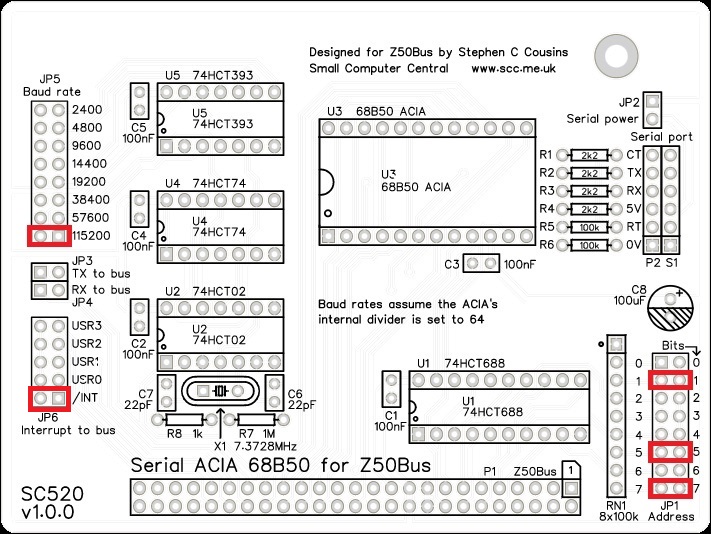
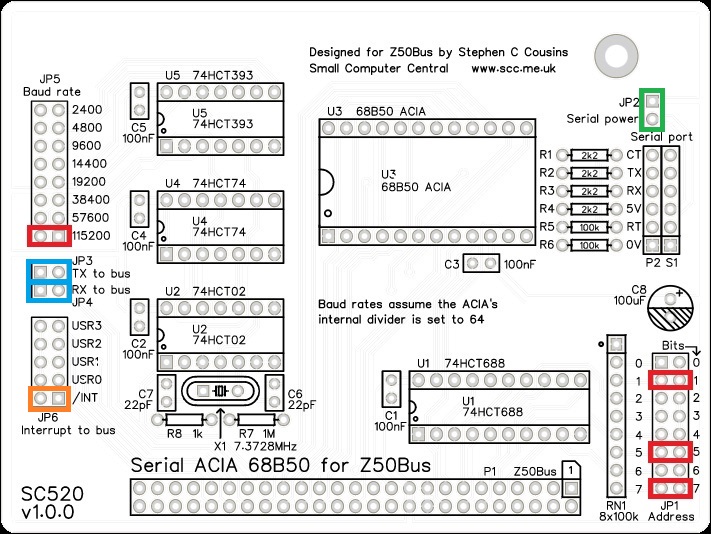
The illustration below shows the default jumper shunt positions which set the card as follows:
- The base I/O address is 0xA2 (ACIA occupies 0xA2 and 0xA3)
- Serial port set to 115200 baud
- Power is supplied by the Z50Bus (not SC520)
- The Interrupt signal is connected for Z80 mode 1 interrupt handling (in some cases you may wish to use a different interrupt configuration, so check your software’s requirements)
Address Selection
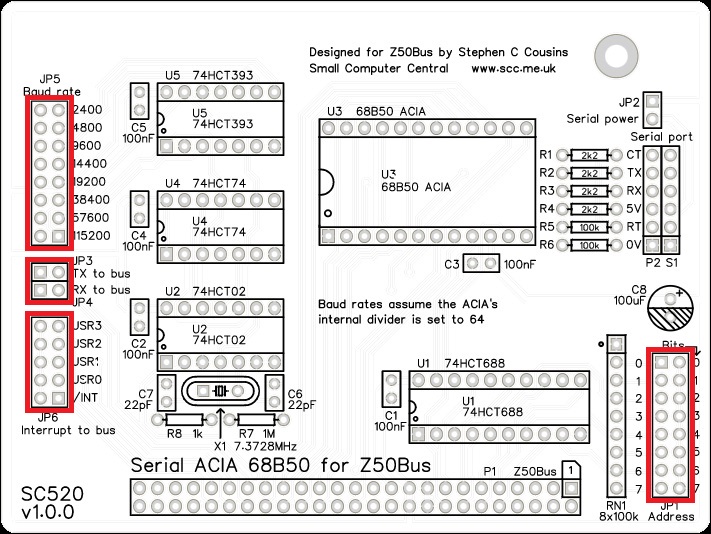
Jumper shunts on JP1 allow the base address of the card to be set. The card occupies two I/O addresses. Some firmware and software support two cards.
| Port | Address | Jumper shunt(s) |
| Primary | Base address 0xA2 Range 0xA2 and 0xA3 | Bit 7 and Bit 5 and Bit 1 |
| Secondary | Base address 0xA4 Range 0xA4 and 0xA5 | Bit 7 and Bit 5 and Bit 2 |
The primary address is the default supported by the current firmware and software. A second card can be added to the system with the secondary address selected. Support for a second card will depend on the software being used.
Powering the system
Fitting a jumper shunt to header JP2 connects the FTDI style 5-volt serial port’s power pin to the card’s 5-volt supply. This enables the retro computer system to be powered from the serial port, or a device connected to the serial port to be powered from this card.
Alternatively, power can be supplied from the Z50Bus.
Do not attempt to power the system from two different sources. If the system is not being powered from a serial port, then only fit a jumper shunt to JP2 if the serial device is being powered from the system.
Serial on the Z50Bus
The Z50Bus has two lines dedicated to a serial interface. This enables two cards to communicate via the bus rather than having to have additional cables between the cards.
Jumpers JP3 and JP4 enable the serial port to be connected to the Z50Bus RX and TX lines. Leave the jumper shunts off to isolate this card’s RX and TX signals from the Z50Bus.
Serial Port
The FTDI style 5-volt serial port is provided at P2 and S1.
The pin-out, below, describes signals with respect to the card, so output is a signal from the card to a computer or terminal.
| Pin | Function |
| 6 | Clear To Send (CTS) input to the card |
| 5 | Transmit Data (TxD) output from the card |
| 4 | Receive Data (RxD) input to the card |
| 3 | Vcc (5V) |
| 2 | Request To Send (RTS) output from the card |
| 1 | Ground (GND) |
The serial port settings depend on the card’s jumpers and also the firmware or software being run. Typically these are:
| Baud rate | 115200 |
| Data bits | 8 |
| Stop bits | 1 |
| Parity | None |
| Flow control | Hardware RTS/CTS |
As this card has its own non-programmable baud rate generator the baud rate settings in software, such as RomWBW and SCM, are ignored. Software should be set to 115200 baud regardless of the jumper shunt position on this card. See technical note below.
Technical note:
Software should set the ACIA’s internal divider to 64. This will generate the indicated baud rates from a 7.3728 MHz oscillator. It is best to set the software to assume 115200 baud, regardless of the jumper setting, as selecting a slow baud rate in software may result in the ACIA’s internal devider being set to a value other than 64.
Clock Source
This card has its own oscillator as a clock source for the ACIA, making the serial port function independent of the CPU’s main clock.
Software and Firmware Support
Z80 systems with the Small Computer Monitor in ROM:
Plug this card and a Z80 processor card, such as SC516, into a suitable backplane. Connect an FTDI style serial to USB adapter from serial port (S1 or P2) to a computer running a terminal emulation program. The terminal should be configured for 115200 baud, 8 data, 1 stop, no parity. Flow control can be either Off or hardware RTS/CTS. SCM does not require flow control, but other software and firmware, such as RomWBW, benefit from flow control being set to RTS/CTS. FOr the initial testing with SCM it is recommended that flow control be turned off as this is less demanding on all hardware funtions working.
Turn the power on. The terminal should show something similar to the illustration below.

Z180 systems with RomWBW support this card. Remember to configure RomWBW to assume 115200 baud, as described in the technical note above. RomWBW benefits from RTS/CTS flow control being enabled.
Parts List
| Reference | Qty | Component |
| PCB | 1 | SC520, v1.0, PCB |
| C1 to C5 | 5 | Capacitor, ceramic, 100 nF |
| C6, C7 | 2 | Capacitor, ceramic, 22 pF |
| C8 | 1 | Capacitor, electrolytic, 100 µF |
| JP1 | 1 | Header, male, 2 row x 8 pin, angled, or Header, male, 2 row x 8 pin, straight |
| JP2 | 1 | Header, male, 1 row x 2 pin, angled |
| JP3 plus JP4 | 1 | Header, male, 2 row x 2 pin, angled, or Header, male, 2 row x 2 pin, straight |
| JP5 | 1 | Header, male, 2 row x 8 pin, angled, or Header, male, 2 row x 8 pin, straight |
| JP6 | 1 | Header, male, 2 row x 5 pin, angled, or Header, male, 2 row x 5 pin, straight |
| Jumper shunts | 14 | Jumper shunt Two used to pad box header |
| P1 | 1 | Box header, 2 x 25 pin, angled, or Header, male, 2 row x 25 pin, angled |
| P2 | 1 | Header, male, 1 row x 6 pin, angled |
| R1 to R4 | 4 | Resistor, 2k2, 0.25W |
| R5, R6 | 2 | Resistor, 100k, 0.25W |
| R7 | 1 | Resistor, 1M, 0.25W |
| R8 | 1 | Resistor, 1k, 0.25W |
| RN1 | 1 | Resistor network, 8 x 100k, SIL, 9-pin |
| S1 | 1 | Header, female, 1 row x 6 pin, angled |
| Spacer | 1 | Spacer, 10mm, M3, nylon |
| Screw (for spacer) | 1 | Machine screw, 6mm, M3 |
| U1 | 1 | 74HCT688 |
| U1 socket | 1 | 20-pin DIP socket |
| U2 | 1 | 74HCT02 |
| U2 socket | 1 | 14-pin DIP socket |
| U3 | 1 | 68B50 ACIA |
| U3 socket | 1 | 24-pin DIP socket |
| U4 | 1 | 74HCT74 |
| U4 socket | 1 | 14-pin DIP socket |
| U5 | 1 | 74HCT393 |
| U5 socket | 1 | 14-pin DIP socket |
| X1 | 1 | Crystal, 7.3728 MHz |
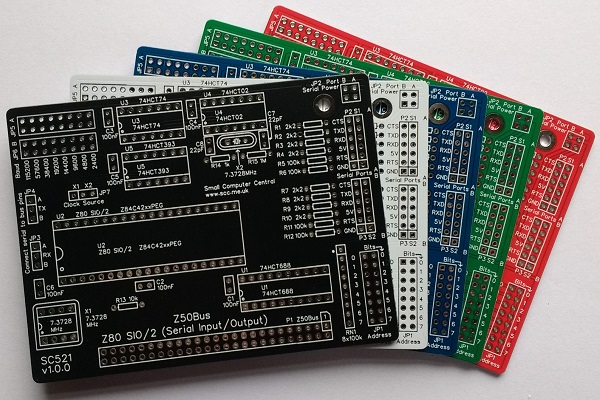
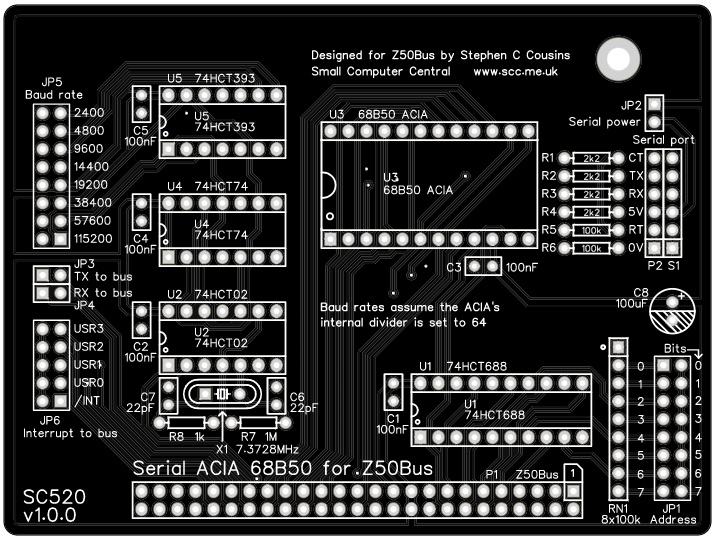
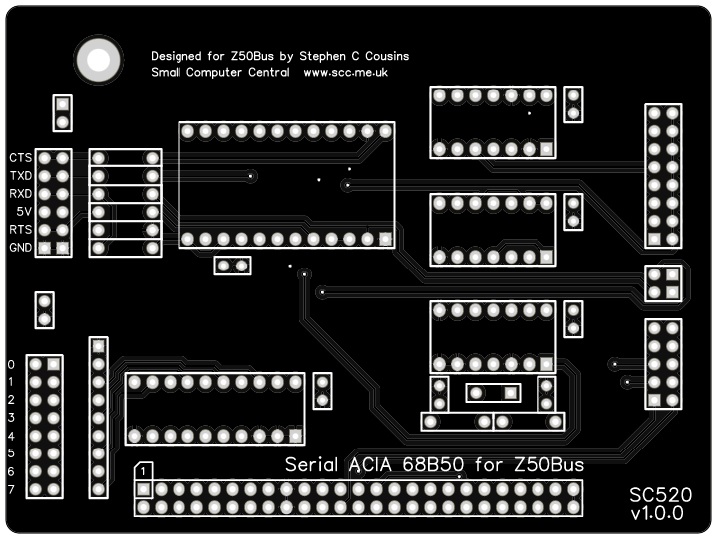
Printed Circuit Board
| Supplier | Website | Ships from |
| Stephen C Cousins | Tindie | UK |
| pcb4diy | pcb4diy.de | Germany |
| pcb4diy | eBay | Germany |
Assembly Guide
Important note: How to modify box headers
Experienced builders can just go ahead and populate the board. There shouldn’t be any surprises to catch you out.
This guide assumes you are familiar with assembling circuit boards, soldering, and cleaning. If not, it is recommended you read some of the guides on the internet before continuing.
First check you have all the required components, as listed in the parts list.
Before assembling it is worth visually inspecting the circuit board for anything that looks out of place, such as mechanical damage or apparent manufacturing defects.
If you have a multimeter that measures resistance or has a continuity test function, check there is not a short on the power supply tracks. Connect the probes to each terminal of one of the capacitors, such as C1. This should be an open circuit, not a short circuit.
The picture below shows what a completed SC520 serial card should look like.
Resistors
Fit and solder the four 2k2 resistors, R1 to R4 (shown below in red).

Fit and solder the two 100k resistors, R5 and R6 (shown below in green).
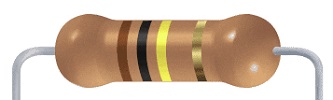
These can be fitted either way around as they are not polarity dependent.

Resistors
Fit and solder the 1M resistor, R7 (shown below in green).

Fit and solder the 1k (1000 ohm) resistor, R8 (shown below in red).
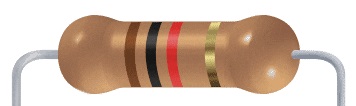
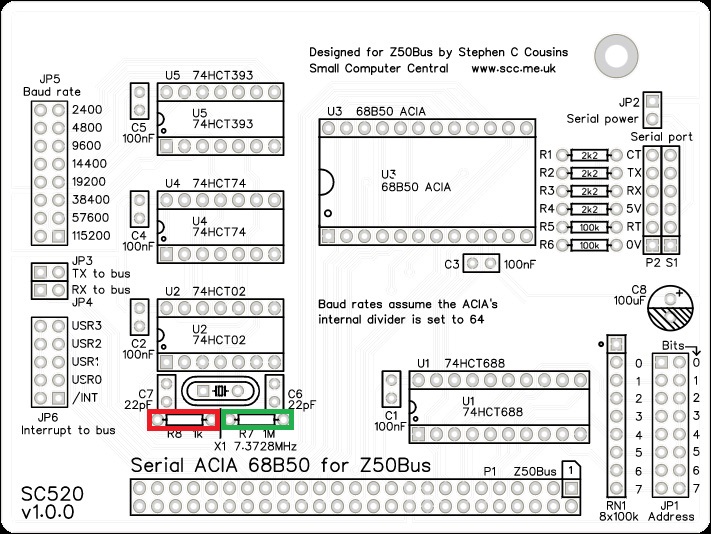
Socket (6-pin)
Fit and solder the 6-pin angled socket, S1.
Ensure the socket lays flat against the circuit board.


IC sockets
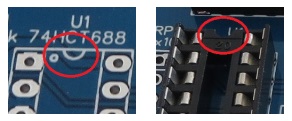
Fit and solder the IC sockets for U1 to U5 (shown below in red).
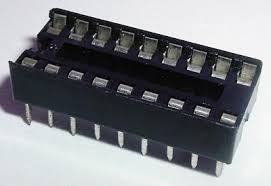
Be sure to fit them with the notch matching the legend on the circuit board, so you do not end up fitting the IC the wrong way around too.

Serial header
Fit and solder the serial port header pins, P2, and the power jumper, JP2.
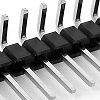
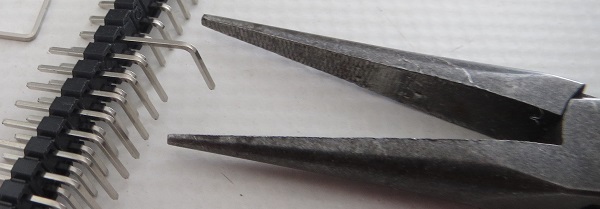
You can either fit these as a single continuous strip, by pulling out the unwanted pins with pliers, or you can cut the strip into the correct side for each header.

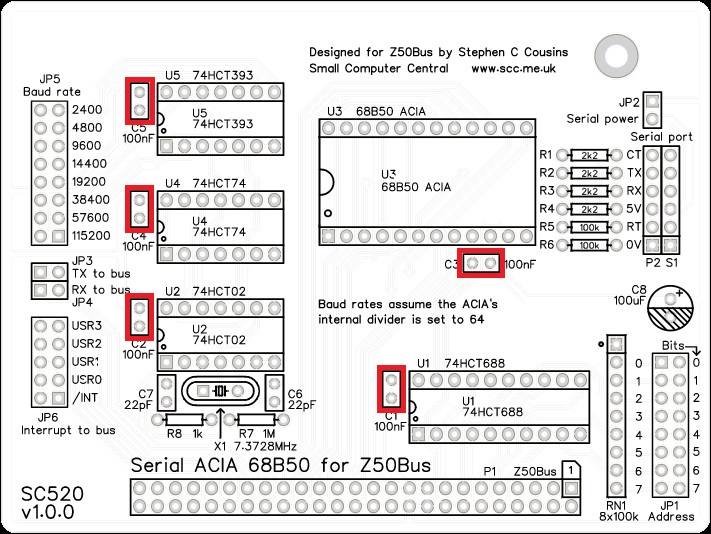
Capacitor 100 nF (0.1 µF)
Fit and solder capacitors, C1 to C5.
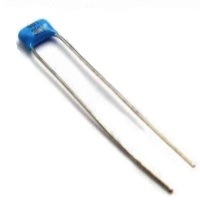
This capacitor can be fitted either way around, as it is not polarity dependent.
The exact value of this component is not critical. The use of very cheap capacitors within the range of about 30 to 200 nF is acceptable.
Crystal
Fit and solder the 7.3728 MHz crystal, X1.
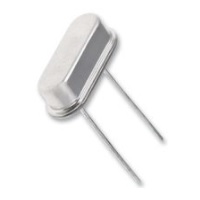
This component can be fitted either way around, as it is not polarity dependent.

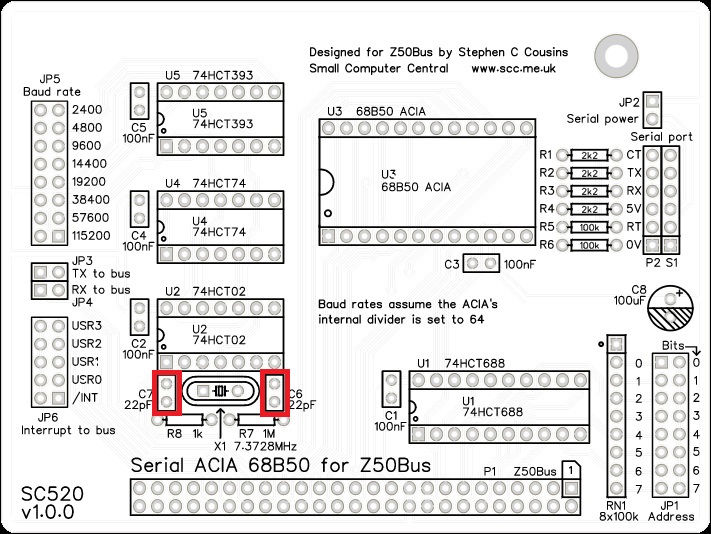
Capacitors 22 pF
Fit and solder 22pF capacitors C6 and C7.
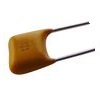
These capacitors can be fitted either way around, as they are not polarity dependent.
Resistor network
Fit and solder the 8x100k resistor network RN1 (shown below in red).
The 100k network will be marked 104.
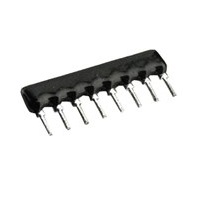
Take care to fit the resistor network the correct way around. Pin 1 is usually marked with a dot. This end is indicated on the PCB and on the illustration below.


Capacitor (100uF)
Fit and solder capacitor, C8.
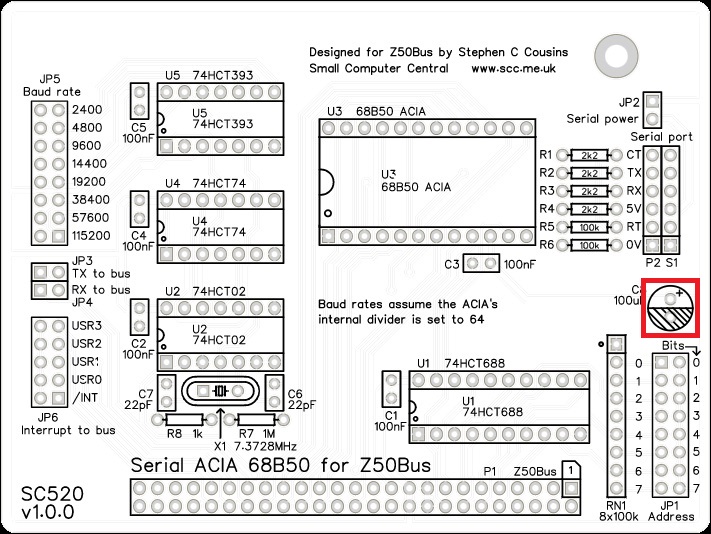
It is important to fit this capacitor the right way around. The negative terminal is indicated with a ‘minus’ sign, as illustrated to the right. The negative terminal also has a shorter lead.
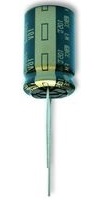
The silkscreen has a plus sign for the positive terminal and a hashed area for the negative terminal.
Jumper pins
Fit and solder jumper header pins, JP1, JP3 plus JP4, JP5, and JP6.
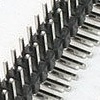
These may need to be cut from longer strips. The plastic is easy to cut with long-nosed wire cutters.
You can either fit JP3, JP4, JP5, and JP6 as a single continuous strip, by pulling out the unwanted pins with pliers, or you can cut the strip into the correct side for each header.
Header JP1 is the 7 address select jumpers that are labelled with their bit numbers. The card occupies 2 addresses, thus address bit 0 is not included in the address decoding. The board includes a placeholder for bit 0 for consistency with other cards in the SC500 series. It is suggested that you remove or cut the pin for bit 0 as a reminder that they are not used.
Bus connector
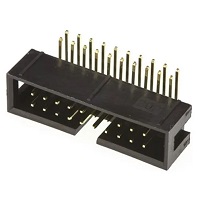
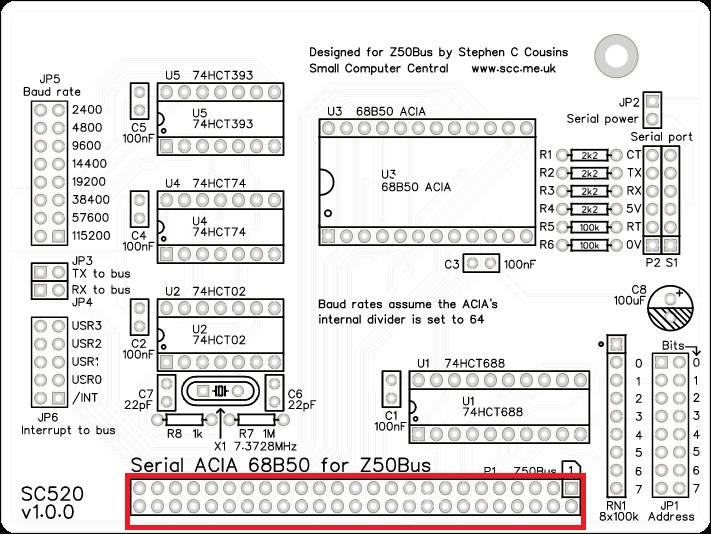
Fit and solder the bus connector, P1. This can either be a right-angled box header or right-angled header pins. The box header is recommended.
Take care to ensure the connector is fitted such that the card will stand vertically when fitted to a backplane. A good method is to just solder two pins, one at each end, and then check it looks correct. Then solder two more, one at each end but in the other row, and check again. At each stage, if necessary, adjust the position by heating the required solder joint and moving the connector slightly. Solder two pins in the middle of the connector and check again. Then solder all the others.
Inspection
Remove any solder ‘splats’ with a brush, such as an old toothbrush.
Visually inspect the soldering for dry joints and shorts.
Clean the flux off with suitable cleaning materials.
Visually inspect again.
Integrated circuits
Insert the ICs into their sockets, taking care to insert them the right way around, as illustrated below. Be careful not to bend any legs over. ICs are usually supplied with the legs slightly spread out making them difficult to insert. It is best to bend the two rows of legs so they are parallel before inserting them. Remember, these components can be damaged by static electricity so if possible earth yourself and the components while handling them.

Test
Fit a jumper shunts in the positions shown below in red. These select the defaults for this card.
If the system is to be powered from the serial port, fit a jumper shunt at JP2, shown below in green.
Do not attempt to power the system from two different sources. If the system is not being powered from a serial port, then only fit a jumper shunt to JP2 if the serial device is being powered from the system.
The jumpers shown in blue are optional. They are only needed if you wish to connect the serial port to the Z50Bus RX and TX lines. To connect the serial port to the bus lines, fit the shunts in the positions shown below in blue.
The interrupt is not connected using the default jumper positions. To connect the interrupt, fit a jumper shunt to the required position of JP6. The Small Computer Monitor does not require the interrupt to be connected. Note that other software, such as CP/M, may require a jumper fitted to JP1. Usually, this will be in the /INT position, as shown below in orange. Some set ups may require a different interrupt configuration.
IMPORTANT: Check what your other firmware and software assumes about interrupts. Generally, you will need to fit a jumper shunt to the /INT position of JP6 to enable Z80 mode 1 interrupts to be used with this card.
You are now ready to play!
Z80 systems with the Small Computer Monitor in ROM:
Plug this card and a Z80 processor card, such as SC516, into a suitable backplane. Connect an FTDI style serial to USB adapter from serial port (S1 or P2) to a computer running a terminal emulation program. The terminal should be configured for 115200 baud, 8 data, 1 stop, no parity. Flow control can be either Off or hardware RTS/CTS.
Turn the power on to the system. The terminal should show something similar to the illustration below.
Z180 systems with RomWBW:
TODO – This card is not supported in the 3.0.1 release version of RomWBW, but you can download the latest pre-release version from the development branch and configure it for this card. Later release versions of RomWBW should include support for this card.
Fault Finding
Check there are no chips with bent legs and thus not making contact with their socket, carefully inspect all soldering, check all the chips are inserted the right way around, check all the components are in the right place.
Power the system from the backplane or serial port and check the supply voltage on this circuit board between, say, U5 pin 7 and U5 pin 14. This should be 4.5 to 5.5 volts, preferably 4.75 to 5.25 volts.
If your system is running the Small Computer Monitor and you have a means of displaying the self-test results, typically an LED output, check if the serial port has been detected. See the processor card and SCM documentation for details.
If the serial port has not been detected, the problem is probably one of the signals from the Z50Bus to the ACIA or a fault with the address decoding on the serial card.
If the serial port has been detected, the main bus connections and ACIA chip are probably good. Disconnect the USB to serial adapter from the serial card, fit a jumper shunt to JP2, and power the system from the backplane. Check these voltages on the serial port header (S1 or P2):
- Pin 1, GND, less than 0.1 volts
- Pin 2, /RTS, more than 4.5 volts
- Pin 3, 5V, more than 4.5 volts
- Pin 4, RXD, more than 4.5 volts
- Pin 5, TXD, more than 4.5 volts
- Pin 6, /CTS, less than 0.4 volts
If you have a logic probe or oscilloscope, check the output of the oscillator (X1). This should be 7.3728 MHz.
Notes
- This design is made with the permission of LiNC (designers of the Z50Bus).
- This product is designed for hobby use and is not suitable for industrial, commercial, or safety-critical applications.
- The product contains small parts and is not suitable for young children.
 Small Computer Central
