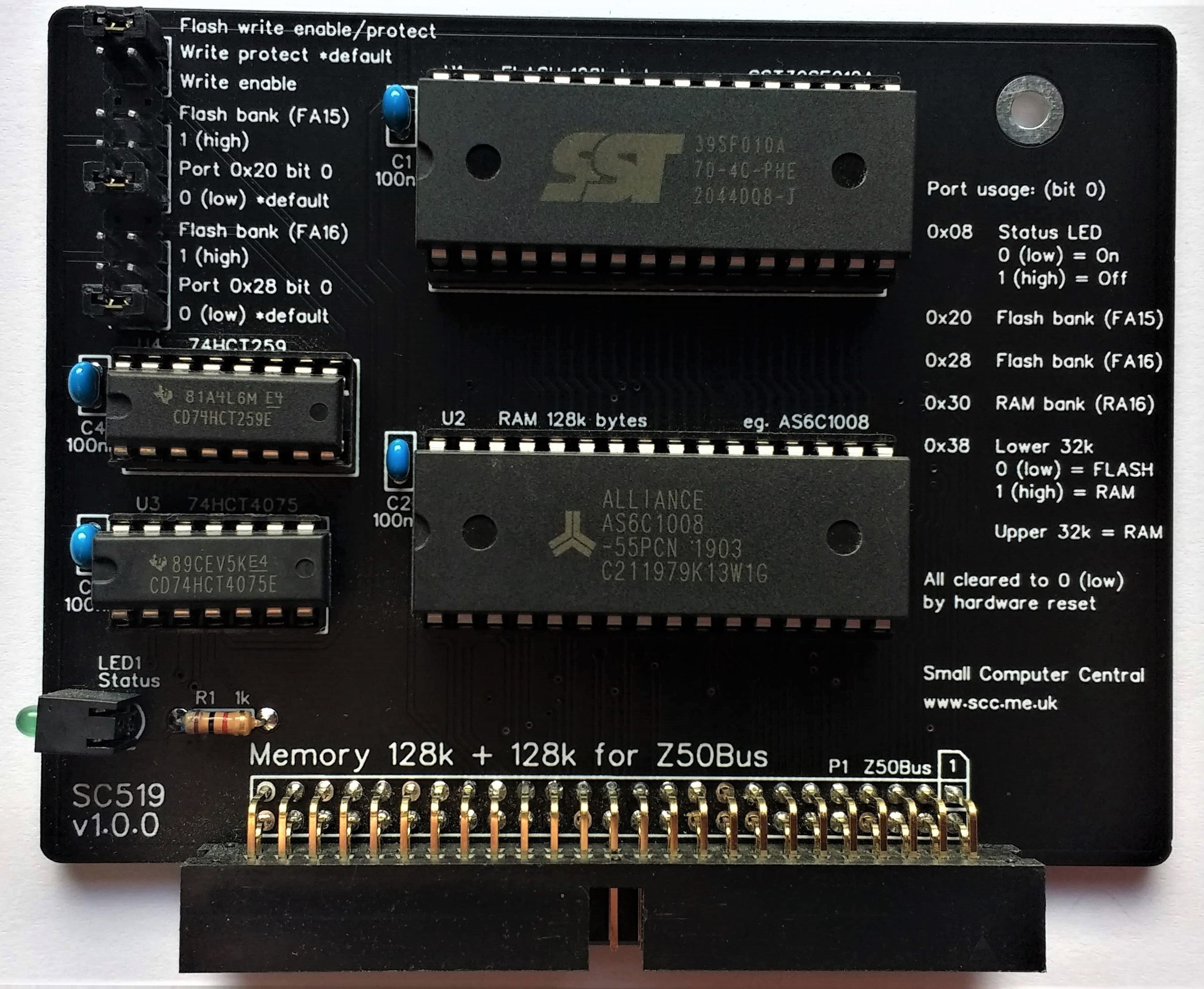
SC519 is a Z80 Memory card designed for Z50Bus.
Documentation
- SC500 – Series Information
- SC519 – Description
- SC519 – Assembly Guide
- SC519 – Firmware, SCM F2
- SC519 – Parts List
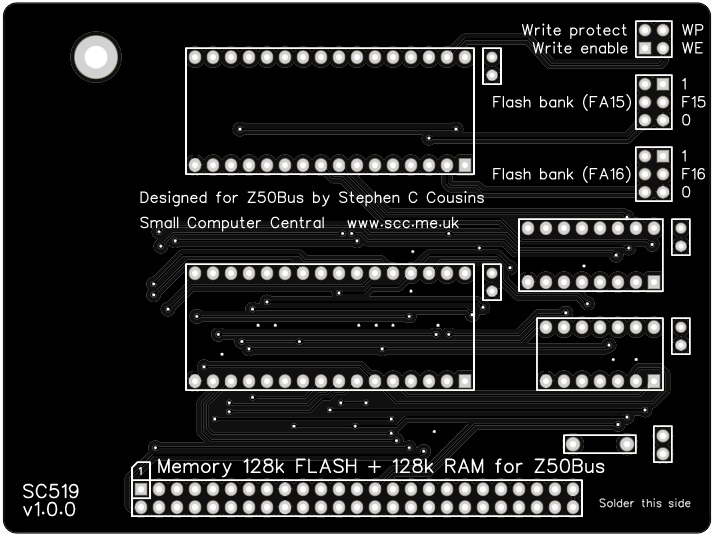
- SC519 – Printed Circuit Board
- SC519 – Software, CP/M 2.2
- SC519 – Software, SCM Apps
- SC519 – Support
- SC519 – User Guide
Downloads
Kits
Description
SC519 is a Z80 memory card designed for Z50Bus.
This card provides memory for a Z80 based system.
The main features are:
- 128k bytes FLASH (4 banks of 32k bytes)
- 128k bytes RAM (second 64k not easy to use, so best consider it to be 64k usable)
- Status LED
- Jumper selection of FLASH bank, or
- Software control of FLASH bank
- Write protect jumper for FLASH memory
- Compatible with Z80 CPU card SC518
This card is designed to provide memory (FLASH ROM and RAM) for a Z80 system. It allows up to four sets of firmware to be selected by jumpers or, alternatively, all four banks can be selected in software allowing access to all 128k bytes of FLASH memory. This flexibility makes it particularly useful for minimal systems without mass storage and also for firmware developers.
A typical system will also require:
- Backplane (eg. SC501)
- Power supply (eg. SC502)
- Z80 CPU card (eg. SC518)
- Serial card (eg. SC521)
Parts List
| Reference | Qty | Component |
| PCB | 1 | SC519, v1.0, PCB |
| C1 to C4 | 4 | Capacitor, ceramic, 100 nF |
| JP1 plus 2 plus 3 | 1 | Header, male, 2 x 10 pin, angled, or Header, male, 2 x 10-pin, straight |
| Jumper shunts | 5 | Jumper shunt Two used to pad box header |
| LED1 | 1 | LED, green, 3mm, angled |
| P1 | 1 | Box header, 2 x 25 pin, angled, or Header, male, 2 x 25 pin, angled |
| R1 | 1 | Resistor, 1k, 0.25W |
| Spacer | 1 | Spacer, 10mm, M3, nylon |
| Screw (for spacer) | 1 | Machine screw, 6mm, M3 |
| U1 | 1 | Flash 128k bytes SST39SF010A |
| U1 socket | 1 | 32-pin DIP socket |
| U2 | 1 | RAM 128k bytes AS6C1008 |
| U2 socket | 1 | 32-pin DIP socket |
| U3 | 1 | 74HCT4075 |
| U3 socket | 1 | 14-pin DIP socket |
| U4 | 1 | 74HCT259 |
| U4 socket | 1 | 16-pin DIP socket |
Printed Circuit Board
| Supplier | Website | Ships from |
| Stephen C Cousins | Tindie | UK |
| pcb4diy | pcb4diy.de | Germany |
| pcb4diy | eBay | Germany |
User Guide
SC519 is a Z80 memory card designed for Z50Bus.
Default settings
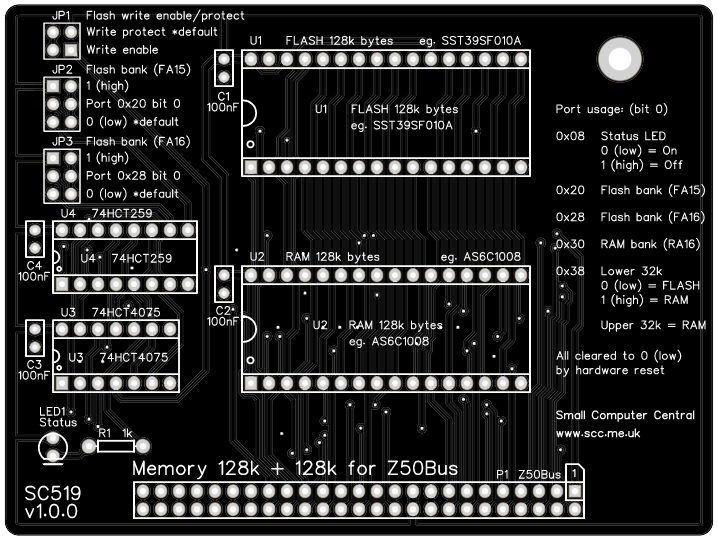
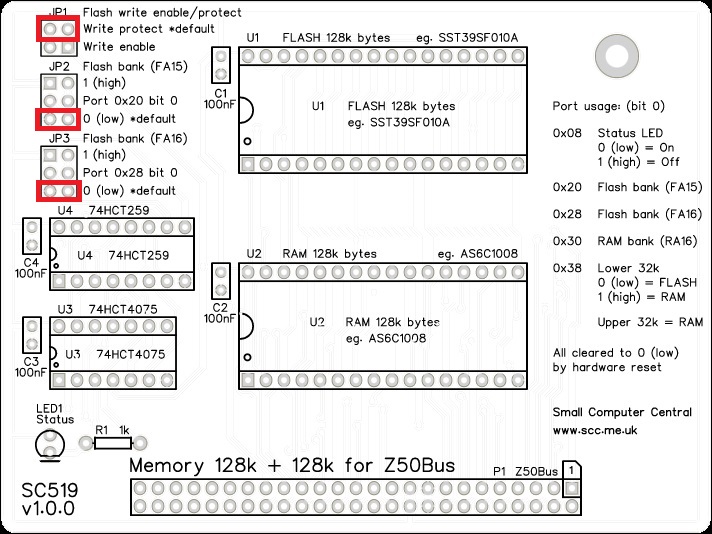
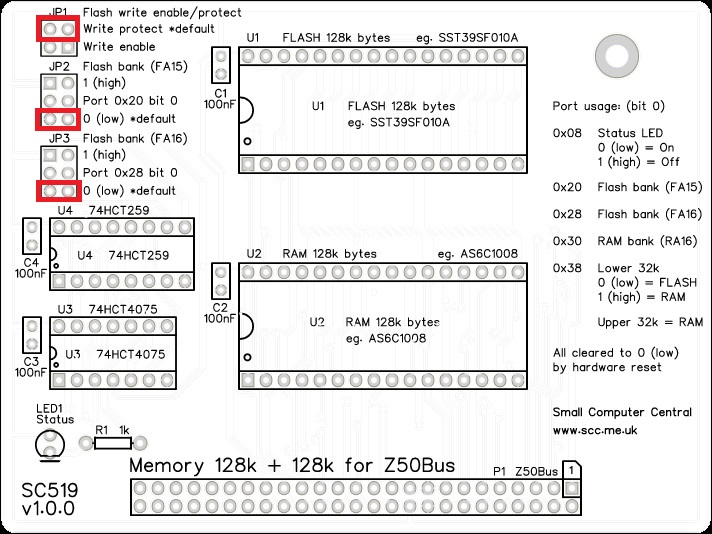
The card has three sets of jumper pins. Each set of jumper pins requires one shunt to be fitted. The default positions of the jumper shunts are shown below.
Memory map
This memory card is designed for use with a Z80 CPU.
Following a hardware reset, with the jumper shunts in their default positions, the memory is mapped as indicated below.
| Z80 memory range | Function/mapping |
| Lower 32k bytes 0x0000 to 0x7FFF | FLASH 0x00000 to 0x07FFF |
| Upper 32k bytes 0x8000 to 0xFFFF | RAM 0x08000 to 0x0FFFF |
| FLASH not visible to Z80 | 0x08000 to 0x1FFFF |
| RAM not visible to Z80 | 0x00000 to 0x07FFF 0x10000 to 0x1FFFF |
The memory map can be changed to all 64k being RAM, as needed for CP/M, by writing a 1 (high) to port 0x38 bit 0. The memory map is illustrated below.
| Z80 memory range | Function/mapping |
| Lower 32k bytes 0x0000 to 0x7FFF | RAM 0x00000 to 0x07FFF |
| Upper 32k bytes 0x8000 to 0xFFFF | RAM 0x08000 to 0x0FFFF |
| FLASH not visible to Z80 | 0x00000 to 0x1FFFF |
| RAM not visible to Z80 | 0x10000 to 0x1FFFF |
Jumper options
With the shunts in the default positions, the FLASH memory is protected against being written to and the first 32k bank is mapped into the Z80’s memory from 0x0000 to 0x7FFF.
JP1 shunt can be moved to the “Write enable” position if you want to update the firmware. This requires appropriate software which is not currently available (as far as I know). The shunt can be left in this position as it is very unlikely the FLASH memory will be written to without special software. The IC requires a very specific sequence in order to accept write operations. For peace of mind, it is best to fit the shunt in the “Write protect” during normal use.
JP2 and JP3 allow one of four 32k banks of the FLASH memory to be selected. This allows easy selection of up to four different firmware programs. Alternatively, bank selection can be set for software control. Software control allows the four banks to be manipulated by two output port bits. This enables software to access all 128k of the FLASH memory.
Status LED
When using the Small Computer Monitor ‘ROM’, pressing the reset button should cause the status LED to flash.
- One flash off and on indicates a serial card has been detected on the bus and is being used to connect to a terminal. Serial cards usually work at 115200 baud, 8 data bits, 1 stop bit, no parity and hardware flow control (RTS/CTS).
- Continuous flashing means the RAM test has failed.
After this, the LED is available for use by any software. Just write to port 0x08 (or decimal 8) to control the LED. See table below.
Output port bits
This card uses the following output port and bits.
| Port | Bit | Function |
| 0x08 | 0 | Status LED 0 (low) = ON 1 (high) = OFF |
| 0x20 | 0 | Flash bank select (FA15) |
| 0x28 | 0 | Flash bank select (FA16) |
| 0x30 | 0 | RAM bank select (RA16) 0 (low) = bottom 64k RAM selected 1 (high) = top 64k RAM selected |
| 0x38 | 0 | Lower 32k select 0 (low) = FLASH 1 (high) = RAM |
| Upper 32k is always RAM |
All of the above bits are cleared to 0 (low) by a hardware reset.
Software, CP/M
A version of CP/M 2.2 is available for SC519, Z80 Memory card plus SC518, Z80 CPU card, or compatible systems.
New versions, together with more detailed instructions, are available here.
This version is designed for a Z50Bus system with the following hardware:
- Z80 Central Processing Unit (CPU), SC516 or SC518+SC519
- Z80 Serial Input/Output device (SIO), SC511 or SC521
- Compact Flash card (64MB or 128MB+), SC504
The CP/M software is supplied (below) in the form of a “PutSys” program. This program is loaded and run from the Small Computer Monitor and installs CP/M to a formatted Compact Flash card. Once installed to Compact Flash, CP/M can be started with the command “CPM”, from the Small Computer Monitor.
Downloads
The Compact Flash card needs to be formatted before CP/M is installed.
- SCM_App_CF_Format_1.0.0_2022_03_02.zip (includes source)
One of these files is required to set up CP/M on the Z50Bus system. The first is for a system with a 64MB Compact Flash card, the second is for a 128MB or larger card. CP/M 2.2 supports a maximum of 128MB with any additional space on the card not being used.
Instructions
Instructions to install CP/M 2.2 onto a Compact Flash card can be found here.
Assembly Guide
Important note: How to modify box headers
There shouldn’t be any surprises to catch you out, so experienced builders can just go ahead and populate the board.
This guide assumes you are familiar with assembling circuit boards, soldering, and cleaning. If not, it is recommended you read some of the guides on the internet before continuing.
First check you have all the required components, as listed in the parts list.
Before assembling it is worth visually inspecting the circuit board for anything that looks out of place, such as mechanical damage or apparent manufacturing defects.
If you have a multimeter that measures resistance or has a continuity test function, check there is not a short on the power supply tracks. Connect the probes to each terminal of one of the capacitors, such as C1. This should be an open circuit, not a short circuit.
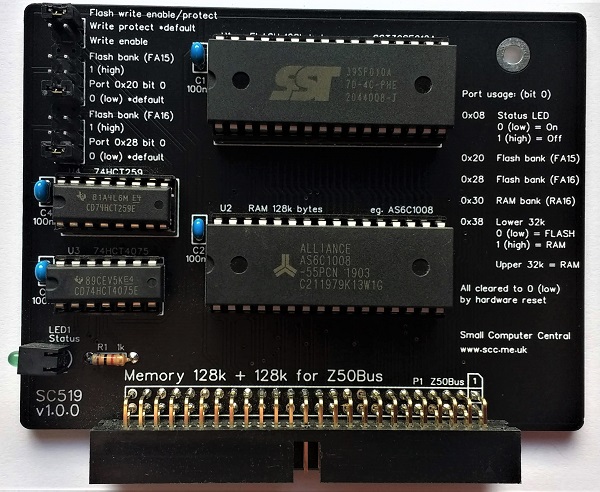
The picture below shows what a completed SC519, Z80 Memory Card should look like.
Resistor
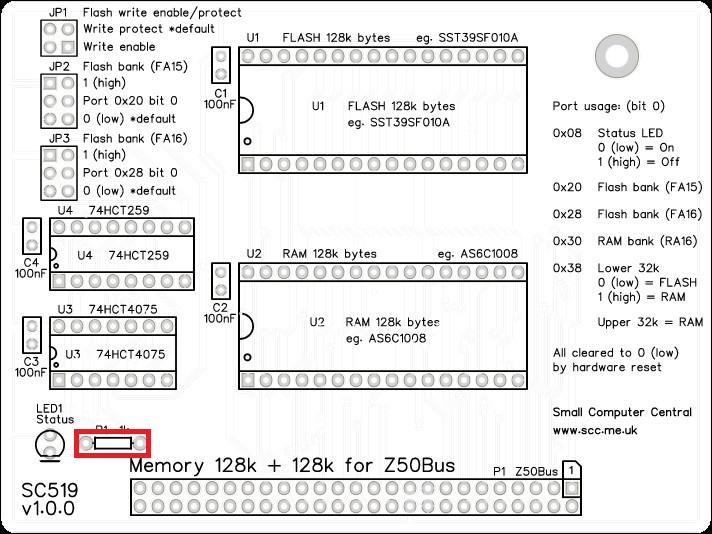
Fit and solder the 1k resistor R1 (shown below in red).
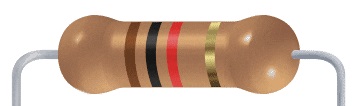
Resistors can be fitted either way around, as they are not polarity dependent.
IC sockets
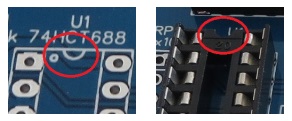
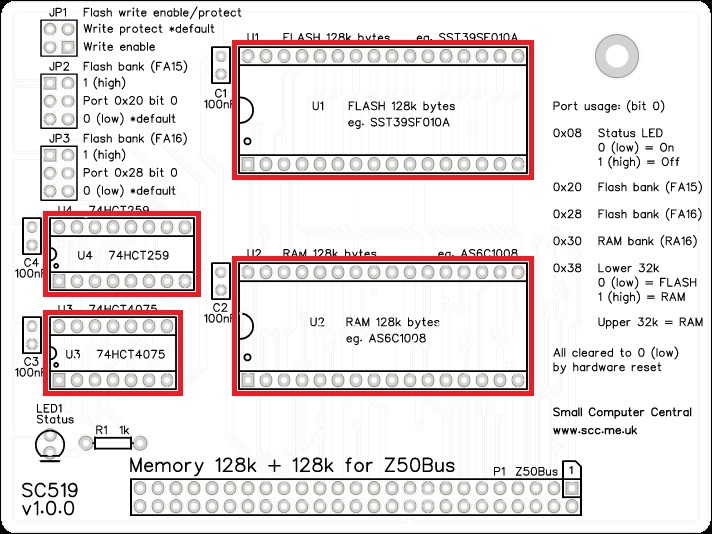
Fit and solder IC sockets for U1 to U4.
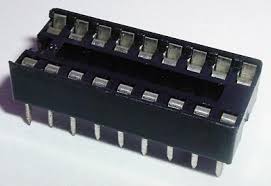
Be sure to fit them with the notch matching the legend on the circuit board, so you do not end up fitting the IC the wrong way around too.
Capacitors
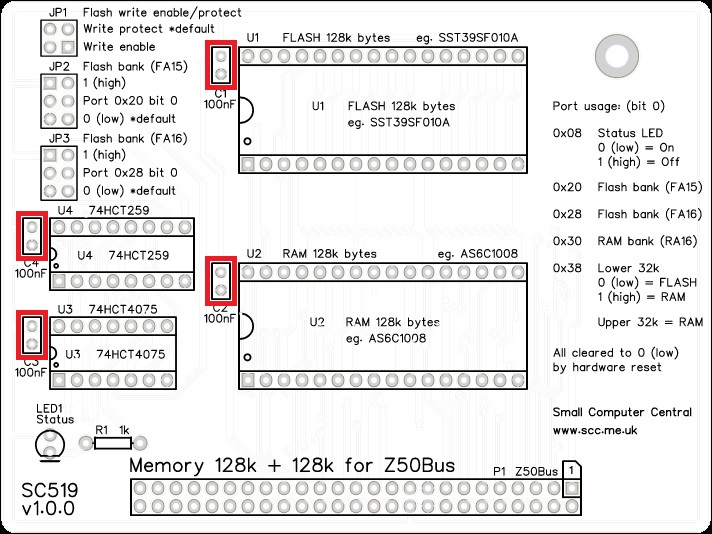
Fit and solder capacitors C1 to C4.
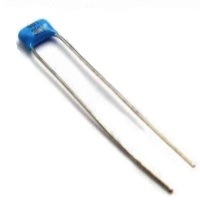
These can be fitted either way around, as they are not polarity dependent.
Light Emitting Diode (LED)
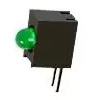
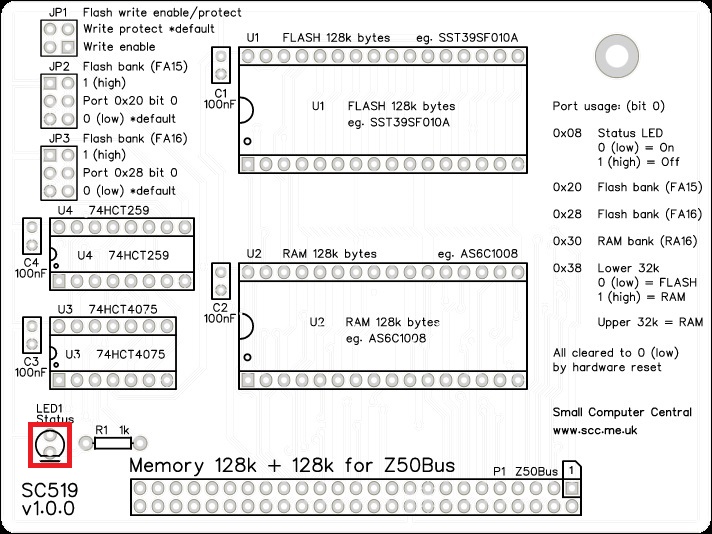
Fit and solder green LED, LED1.
If using an angled LED the polarity is predefined and matches the PCB.
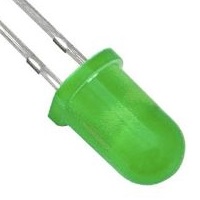
If using a standard LED care must be taken to ensure it is fitted the correct way around.
It is important to fit the LED the correct way around. LEDs usually have a small flat side to indicate the cathode (the negative end). This should be positioned to match the flat side shown on the circuit board (illustrated to the right). Also, the cathode pin on the LED is usually shorter than the other pin (the Anode).

Jumper Header Pins
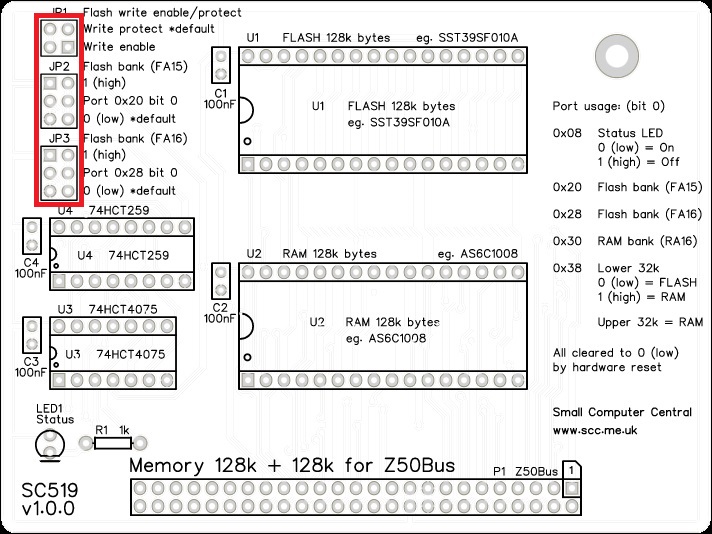
Fit and solder header pins JP1, JP2, and JP3.

This can be fitted as one strip by removing the unused pins. They pull out quite easily. Alternatively, the strip can be cut into three separate smaller strips and then fitted individually.
This header may need to be cut down from a longer strip.
Bus connector
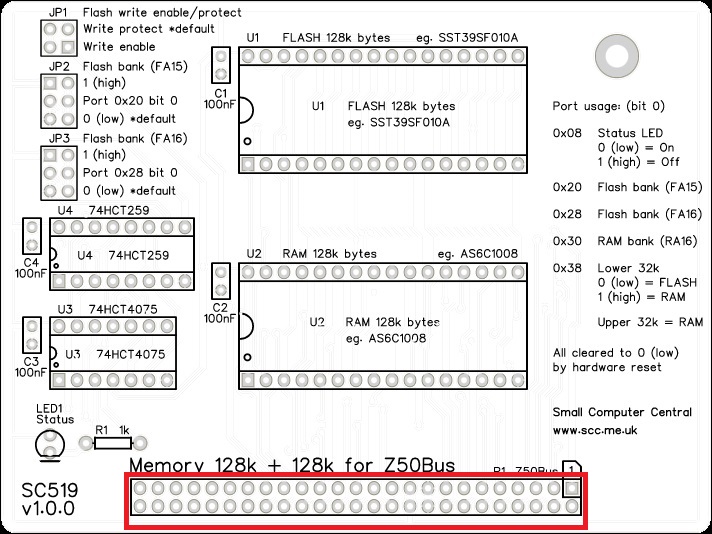
Fit and solder the bus connector, P1. This can either be a right-angled box header or right-angled header pins. The box header is recommended.
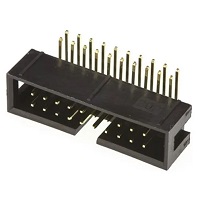
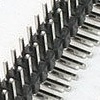
Take care to ensure the connector is fitted such that the card will stand vertically when fitted to a backplane. A good method is to just solder two pins, one at each end, and then check it looks correct. Then solder two more, one at each end but in the other row, and check again. At each stage, if necessary, adjust the position by heating the required solder joint and moving the connector slightly. Solder two pins in the middle of the connector and check again. Then solder all the others.
Inspection
Remove any solder ‘splats’ with a brush, such as an old toothbrush.
Visually inspect the soldering for dry joints and shorts.
Clean the flux off with suitable cleaning materials.
Visually inspect again.
Configuration
Fit jumper shunts in the positions shown below.
Integrated Circuits
Insert the ICs into their sockets, taking care to insert them the right way around, as illustrated below. Be careful not to bend any legs over. ICs are usually supplied with the legs slightly spread out making them difficult to insert. It is best to bend the two rows of legs so they are parallel before inserting them. Remember, these components can be damaged by static electricity so if possible earth yourself and the components while handling them.

Getting Started
The SC519 User Guide includes a brief guide to getting started.
Fault Finding
Check there are no chips with bent legs and thus not making contact with their socket, carefully inspect all soldering, check all the chips are inserted the right way around, check all the components are in the right place.
Fit this card into a backplane together with a suitable set of cards to make a working system and then power up. A minimal system using this card also requires:
- Backplane (eg. SC501, SC508, SC515, or SC522)
- Power and reset card (eg. SC502)
- Z80 CPU card (eg. SC518)
- Serial card (eg. SC511, SC520, or SC521)
Check the LED is on. If it is not, then check the LED is the correct way around. Also check the RESET signal is high but goes low when the reset button is pressed. The LED should light when U4 is powered and working, and the RESET signal on U4 pin 15 is low.
If the LED is working, check it flashes off then on again following a reset. If it flashes then the board is running code successfully. This would indicate that all the main components are generally working. If it keeps flashing the self-test has failed, most likely indicating the RAM is not working.
Notes
- This design is made with the permission of LiNC (designers of the Z50Bus).
- This product is designed for hobby use and is not suitable for industrial, commercial, or safety-critical applications.
- The product contains small parts and is not suitable for young children.
 Small Computer Central