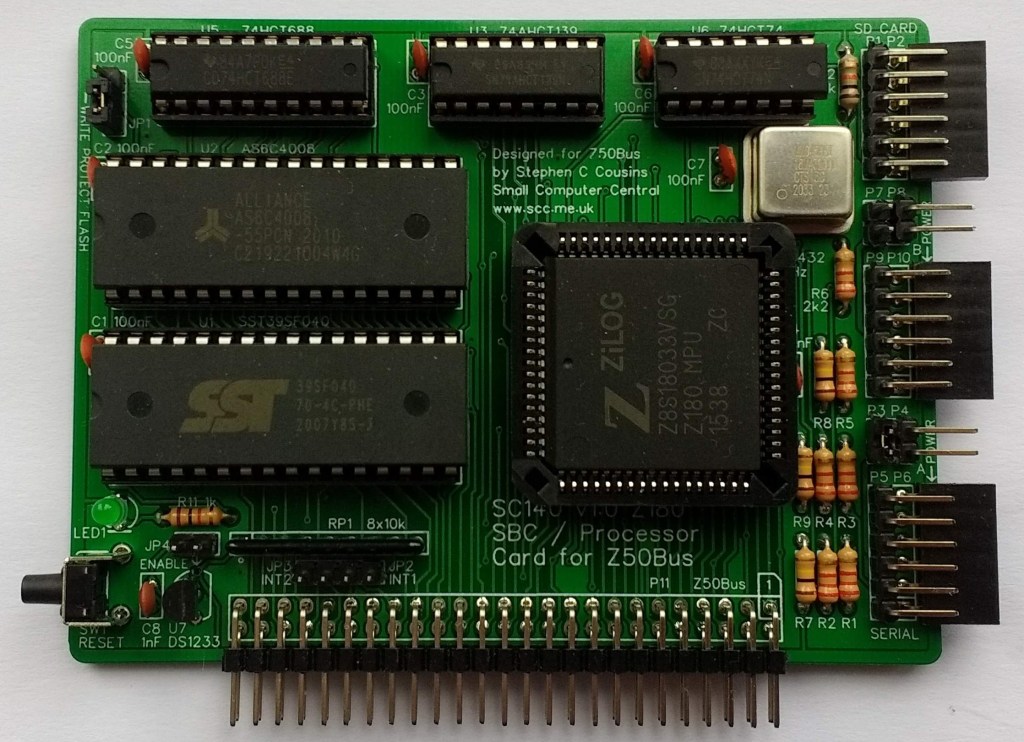
SC140 is a Z180 SBC / Z50Bus Card card.
SC503 is a later version of this design
- SC140 – Assembly guide
- SC140 – Description
- SC140 – Getting started with RomWBW
- SC140 – Firmware, RomWBW_SCZ180_140
- SC140 – Firmware, SCM F3
- SC140 – Parts list
- SC140 – Printed circuit board
- SC140 – Software, RomWBW
- SC140 – Support
- SC140 – Troubleshooting
- SC140 – User guide
Downloads
Suppliers
- SC140 – Kit (Tindie) – discontinued (replaced with SC503)
- SC140 – PCB (Tindie)
Description
SC140 is a Z180 based Single Board Computer in the Z50Bus card form factor. It can be used on its own as a Single Board Computer or it can be plugged into a Z50Bus backplane for expansion.

SC140 includes two 5-volt asynchronous serial ports and an SPI port for connecting a micro SD card adapter. It can also be plugged into a Z50Bus backplane for expansion using Z50Bus cards.
Hardware features
- 1 x Z180 processor clocked at 18.432 MHz.
- 1 x 512k byte RAM.
- 1 x 512k byte Flash (ROM), typically containing RomWBW.
- 2 x Serial ports, asynchronous, 5-volt, with software selectable baud rates.
- 1 x SPI port, primarily for SD card mass storage.
- 1 x Status LED.
- 1 x Voltage supervisor and reset device (DS1233).
- 5 volt power in typically from FTDI style serial adapter.
- 1 x Push button reset switch.
- 1 x 50-pin Z50Bus compatible connector.
- Printed circuit board size 100 mm x 75 mm.
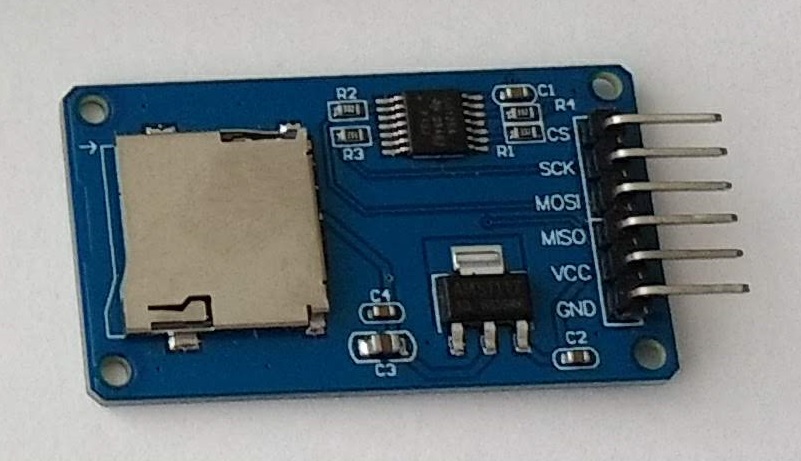
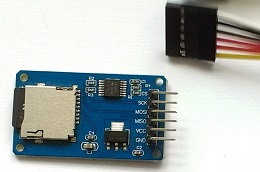
Micro SD Card adapter (shown right) allows a micro SD card to be used for storage of program and data files.
FTDI style 5-volt serial to USB adapter (shown right) allows connection to a computer running a terminal emulation program, such as the Tera Term (free software).
It can also supply power to the card.
Software support
- RomWBW, configuration SCZ180_sc140. This configuration supports an SD card for mass storage.
RomWBW is the primary OS for SC140, offering CP/M, SD card, and CF card support (via Z50Bus compatible expansion card).
User Guide
SC140 is a Z180 based Single Board Computer in the Z50Bus card form factor. It can be used on its own as a Single Board Computer or it can be plugged into a Z50Bus backplane for expansion.
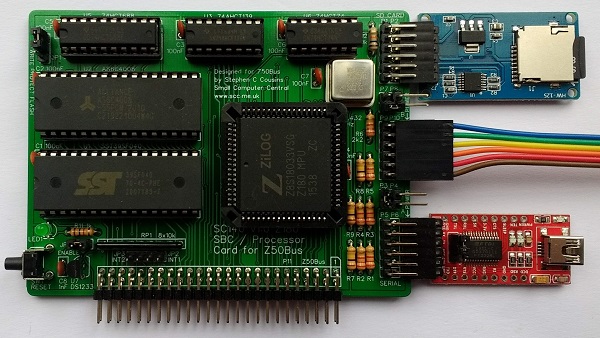
SC140 normally has Flash memory containing RomWBW in socket U1.
Documentation for RomWBW here.
A short guide to getting started with RomWBW on SC140 can be found here.
Quick Guide to Connectors
P11, shown in blue, is the Z50Bus connector. SC140 can be used as a single board computer (SBC) without being connected to a Z50Bus backplane
P1 and P2, shown in orange, is an SPI port, primarily for connecting a Micro SD card adapter. P1 is a male connector, while P2 is a female connector. You should not generally use both at the same time. They are connected exactly the same, providing a choice of male or female connection.
P5 and P6, plus P3 and P4, shown in red, are serial port A. P5 and P6 are typically used to connect an FTDI style serial adapter. P3 or P4 allow a jumper shunt to be fitted to connect power to or from the serial port.
P9 and P10, plus P7 and P8, shown in green, are serial port B. P9 and P10 are typically used to connect an FTDI style serial adapter. P7 or P8 allow a jumper shunt to be fitted to connect power to or from the serial port.

Quick Guide to Jumpers
As a quick guide to getting started: Fit jumper shunts in the positions shown below in red and supply 5 volts via the serial port shown below in green. Typically the serial port is connected to a modern computer’s USB socket using a USB to serial adapter. These adapters can supply 5 volts to SC140. A jumper shunt fitted to P3 or P4 connects power from the USB adapter to the circuitry of SC140.

And for those who are sensible enough to read User Guides…
More about power
SC140 is typically connected to a computer or terminal with an FTDI style serial adapter. This can, optionally, also provide power for SC140. However, some USB sockets and some FTDI style adapters will not provide adequate power, especially if many accessories and expansion cards are also connected.
Each serial port, highlighted below in red, can supply power to the system. To connect power from a serial port, fit a jumper shunt in the appropriate location, indicated below in yellow. The lower jumper is for port A and the upper jumper is for port B.
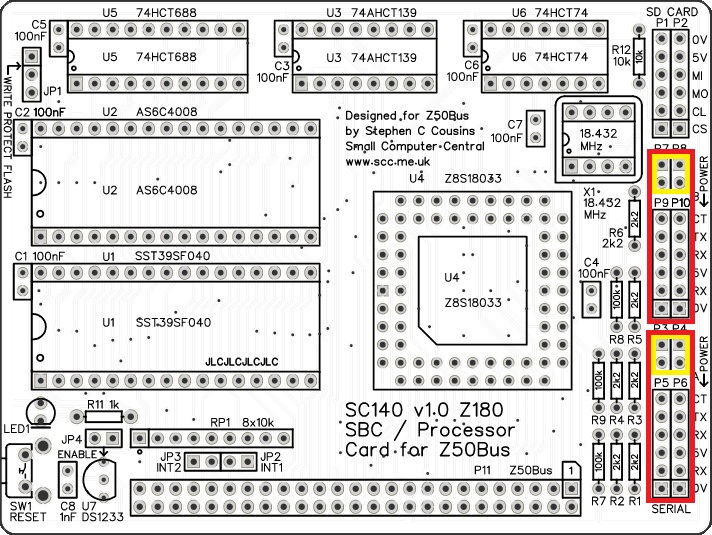
WARNING: You should normally only connect one power source to the system, at any time.
As power can flow either way, these jumpers also enable serial devices to be powered from SC140. If such devices are used, fit a jumper shunt in the appropriate position, indicated above in yellow.
An alternative way to power SC140 is to plug it into a powered Z50Bus backplane. In this case you are unlikely to want jumper shunts fitted to connect power to or from the serial ports.
Write Protect Flash
Jumper JP1, shown below, enables the Flash chip to be write protected. It is unlikely the Flash chip will be corrupted in normal operation due to the software requirements to write to it. However, for peace of mind you can disable writing with a jumper shunt.
Fit the shunt in the position shown below in green to disable writing (to write protect the Flash memory). Alternatively, fit the shunt in the position shown below in red to enable writing.
The Flash chip can be updated without removing it from the circuit board. This is done using the supplied FLASH utility, with write enabled using JP1. While RomWBW includes a ROM disk, the files on that disk can not be updated even with the chip write enabled. It is theoretically possible to update the files in this way, but there is no software, as far as I know, to do this.

Serial Ports
The board has two asynchronous serial ports, with software selectable baud rate. These are 5 volt FTDI style ports.
Port A (the first, default port) is highlighted below in green, and port B is highlighted in red.
Port A has hardware flow control, while port B does not. Port B lacks RTS and CTS signals as they are not available on the Z180 processor.

The pin-out, below, describes signals with respect to SC140 so an output is a signal from SC140 to a computer or terminal.
| Pin | Function |
| 6 | Clear To Send (CTS) input (not connected) |
| 5 | Transmit Data (TxD) output |
| 4 | Recieve Data (RxD) input |
| 3 | Vcc (5V) optional via jumper |
| 2 | Request To Send (RTS) output |
| 1 | Ground (GND) |
The ground terminal is is at the bottom of the connector in the illustration above.
A typical FTDI style serial adapter is illustrated to the right.
This may be fitted directly to SC140 or by a 6-way adapter cable.
The default serial ports settings are as follows:
| Setting | RomWBW |
| Baud rate | 115200 (RomWBW v3.x) |
| Data bits | 8 |
| Parity | none |
| Stop bits | 1 |
| Flow control | Hardware (recommended) |
The default serial port connection is P5 / P6, Serial Port A.
SPI Port
The card has an SPI port, primarily for connection of an SD card adapter.

Note that the ground pin is at the ‘top’ of the SPI/SD card connector, while the serial ports have the ground pin at the ‘bottom’.
The signals are 5 volt levels, with the following pin-out.
| Pin | Function |
| 6 | Ground (GND) |
| 5 | Vcc (5V) |
| 4 | Master in, slave out |
| 3 | Master out, slave in |
| 2 | Clock |
| 1 | Chip select (active low) |
The ground terminal is is at the top of the connector in the illustration above.
A typical micro SD card adapter is illustrated to the right.
This may be fitted directly to SC140 or by a 6-way adapter cable.
Expansion Bus Plug
The expansion connector is 50-pin Z50Bus compatible.
Details of the Z50Bus can be found here.
Memory Map
The physical memory map is simply 512k bytes of Flash ROM at the bottom of memory and 512k bytes of RAM at the top of memory.
The Z180’s memory management unit deals with mapping chunks of this memory into the logical 64k memory map supported by the Z80/Z180 instruction set.
| Address | Function |
| 0x80000 to 0xFFFFF | RAM (512k bytes) |
| 0x00000 to 0x7FFFF | Flash ROM (512k bytes) |
Input / Output Ports
The card’s I/O port addresses are as follows.
| Address | Function |
| 0xC0 to 0xFF | Z180’s internal I/O registers |
| 0x0E | Status LED port (write only) Bit 0 = LED control (active low) |
| 0x0D | Reserved for LED output port (via expansion digital I/O module) |
| 0x0C | System I/O port (write only) Bit 2 = SPI select (active low) |
All other I/O addresses are available for use by expansion cards on the Z50Bus.
For details of the Z180’s internal registers, consult the Z180 datasheet. There are too many registers and functions to describe here.
The status LED is initially turned on but is otherwise free to use. The LED can be written to with output statements or instructions.
- Turn the status LED off from BASIC:
- OUT 14, 1
- Turn the status LED on from BASIC:
- OUT 14, 0
Note that the LED is turned on by writing a 0 (not a 1). This is because the LED output is active low. This is necessary to allow the LED to be turned on by a hardware reset to indicate power is present. The reset signal clears the output latch to zero, thus zero is the on state.
The optional LED output port has 8 LEDs which are used to display diagnostic information at reset, but are otherwise free for use. These can be written to with simple input and output statements or instructions.
- From BASIC:
- OUT 13, <byte-to-be-output>
- From the Small Computer Monitor
- O D <byte-to-to-output>
- From assembler:
- LD A, <byte-to-be-output>
- OUT ($D), A
Parts List
| Reference | Qty | Component |
| PCB | 1 | SC140, v1.0, PCB |
| C1 to C7 | 7 | Capacitor, ceramic, 100 nF |
| C8 | 1 | Capacitor, ceramic, 1 nF |
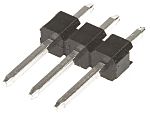
| JP1 | 1 | Header, male, 1 row x 3 pin, straight |
| JP2 plus JP3 | 1 | Header, male, 1 row x 4 pin, straight |
| JP4 | 1 | Header, male, 1 row x 2 pin, straight |
| Jumper shunts | 6 | Jumper shunt |
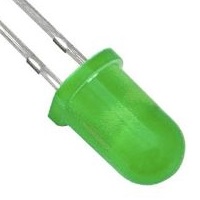
| LED1 | 1 | LED, green, 3mm |
| P1, P5, and P9 | 3 | Header, male, 1 row x 6 pin, angled |
| P2, P6, and P10 | 3 | Header, female, 1 row x 6 pin, angled |
| P3 and P7 | 2 | Header, male, 1 row x 2 pin, straight |
| P4 and P8 | 2 | Header, male, 1 row x 2 pin, angled |
| P11 | 1 | Header, male, 2 row x 25 pin, angled |
| R1 to R6 | 6 | Resistor, 2k2, 0.25W |
| R7 to R9 | 3 | Resistor, 100k, 0.25W |
| R11 | 1 | Resistor, 1k, 0.25W |
| R12 | 1 | Resistor, 10k, 0.25W |
| RP1 | 1 | Resistor pack, 8 x 10k, SIL, 9-pin |
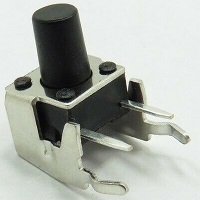
| SW1 | 1 | Switch, tactile button, angled |
| U1 | 1 | SST39SF040, 512k byte Flash |
| U2 | 1 | AS6C4008, 512k byte SRAM |
| U3 | 1 | 74AHCT139 |
| U4 | 1 | Z8S18020VSC/G (Z180 CPU), or Z8S18033VSC/G (Z180 CPU) |
| U5 | 1 | 74HCT688 |
| U6 | 1 | 74HCT74 |
| U7 | 1 | DS1233-5+ EconoReset |
| X1 | 1 | Oscillator, 18.432 MHz |
| IC socket 14-pin U6 | 1 | 14-pin PDIP socket |
| IC socket 16-pin U3 | 1 | 16-pin PDIP socket |
| IC socket 20-pin U5 | 1 | 20-pin PDIP socket |
| IC socket 32-pin U1 and U2 | 2 | 32-pin PDIP socket |
| IC socket 68-pin U4 | 1 | 68-pin PLCC socket |
Printed Circuit Board


| Links |
| SC140, v1.0, PCB only (Tindie) |
| SC140, v1.0, Complete kit (Tindie) – discontinued |
| SC140, v1.0, PCB design files (OSHWLab) |
| SC140, v1.0, Gerber files (ZIP) |
Assembly Guide
WARNING: The oscillator is a very tight fit. It is essential that you fit the oscillator before fitting the 68-pin PLCC socket. See details below. Other than that, experienced builders can just go ahead and populate the board. There shouldn’t be any other surprises to catch you out.
This guide assumes you are familiar with assembling circuit boards, soldering, and cleaning. If not, it is recommended you read some of the guides on the internet before continuing.
First check you have all the required components.
Before assembling it is worth visually inspecting the circuit board for anything that looks out of place, such as mechanical damage or apparent manufacturing defects.
If you have a multimeter that measures resistance or has a continuity test function, check there is not a short on the power supply tracks. Connect the probes to each terminal of one of the capacitors, such as C1. This should be an open circuit, not a short.
The picture below shows what a completed SC140, Z180 SBC / Z50Bus card should look like.
Resistors 2k2
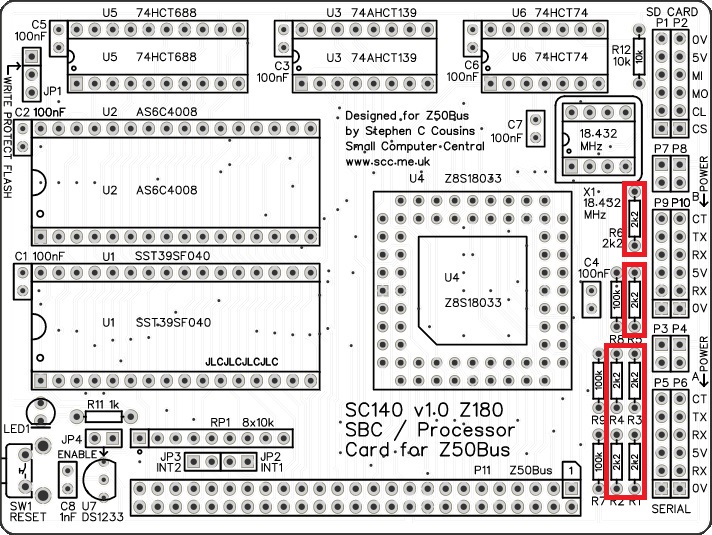
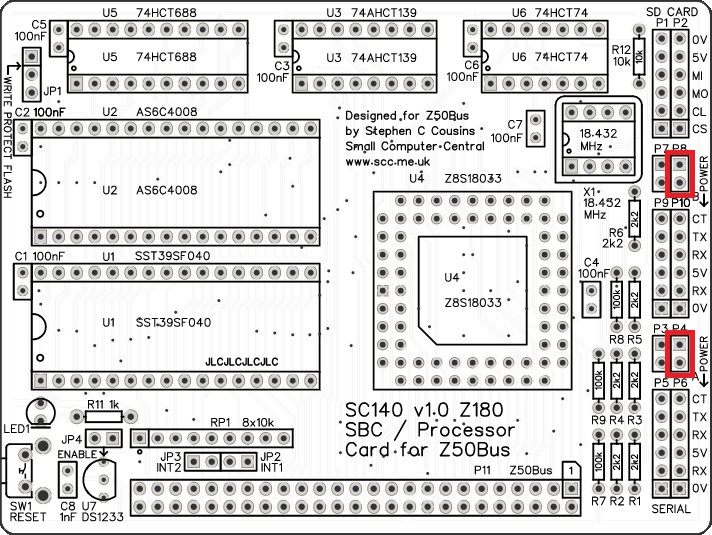
Fit and solder the 2k2 resistors, R1 to R6 (shown below in red).

These can be fitted either way around, as they are not polarity dependent.
Resistors 100k
Fit and solder the 100k resistors, R7 to R9.
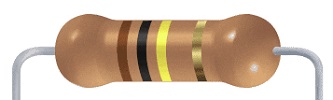

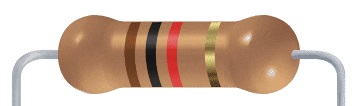
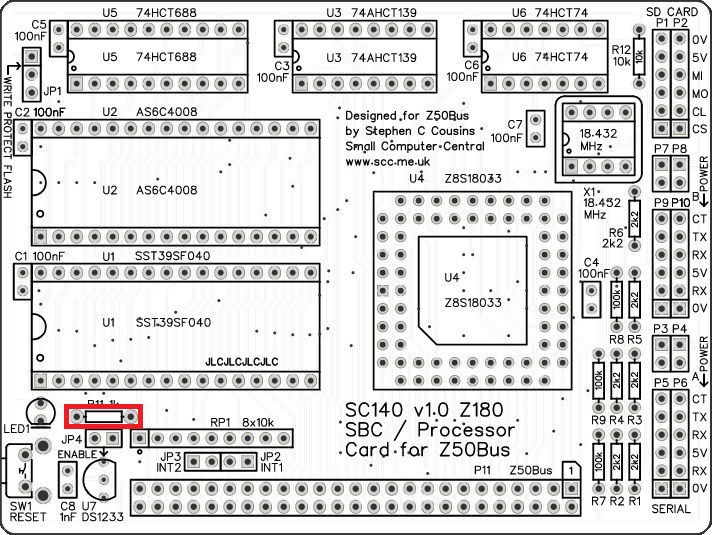
Resistor 1k
Fit and solder the 1k resistor, R11.
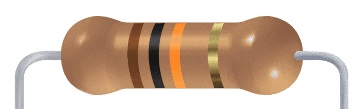
Resistor 10k
Fit and solder the 10k resistor R12.

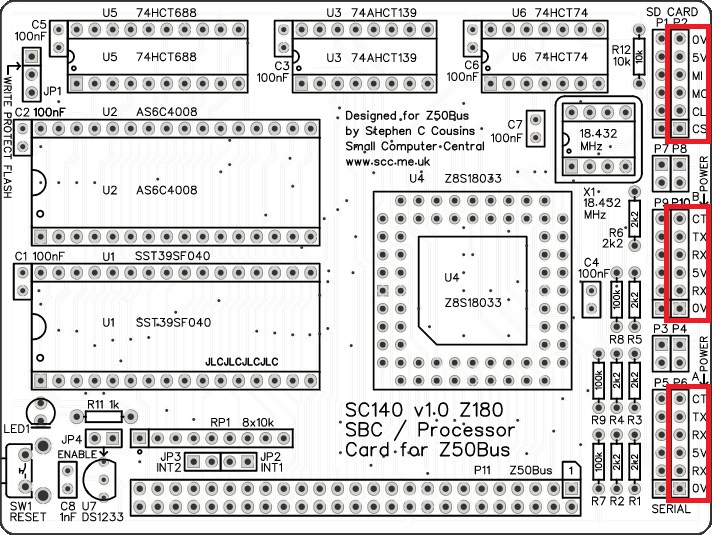
Header sockets
Fit and solder the 6-pin angled header sockets, P2, P6, and P10.
Ensure they are fitted tight to the board.

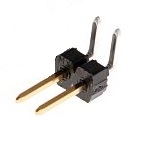
Header pins (2-pin angled)
These may need to be cut from longer strips using wire cutters to cut the plastic.
Fit and solder the 2-pin angled headers, P4 and P8.
Header pins (6-pin angled)
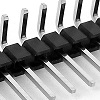
These may need to be cut from longer strips using wire cutters to cut the plastic.
Fit and solder the 6-pin angled headers, P1, 56, and P9.
Ensure they are fitted tight to the board and the pins are parallel to the surface of the 6-pin angled sockets.

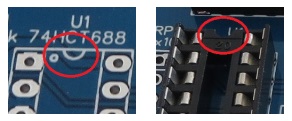
IC sockets
Fit and solder the IC sockets.
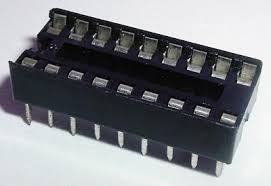
Be sure to fit them with the notch matching the legend on the circuit board, so you do not end up fitting the IC the wrong way around too.

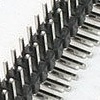
Bus header
Fit and solder the Z50Bus header pins, P11.
Ensure the pins are parallel to the PCB so the card stands vertical when plugged in to a backplane.

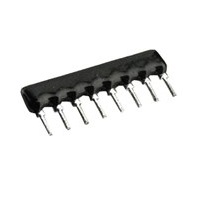
Resistor network
Fit and solder the 8x10k resistor network, RP1.
The 10k network will be marked 103.
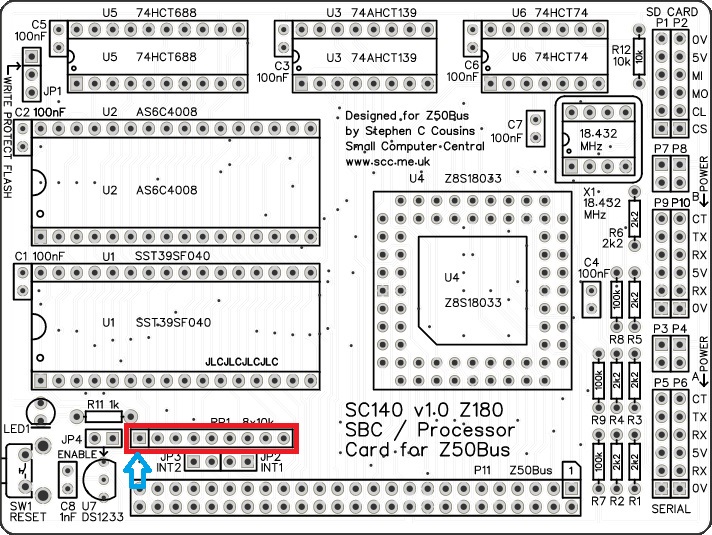
Take care to fit the resistor network the correct way around. Pin 1 is usually marked with a dot. This end is indicated on the PCB and on the illustration below.

Oscillator 18.432 MHz
Fit and solder the 18.432 MHz oscillator, X1. Be sure to fit it the correct way around.
Pin 1 of the oscillator is normally indicated by a ‘sharp’ corner, while the other three corners are rounded.
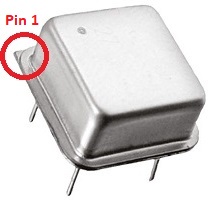
Pin 1 on the circuit board is also indicated by a ‘sharp’ corner, while the other three corners are rounded.

The oscillator is a tight fit between the sockets U4 and U6. Be sure to fit the oscillator tight up against the socket U6 as the slightest gap will make the fit against socket U4 even tighter.

PLCC socket
Fit and solder the 68-pin PLCC socket for U4.
This type of socket can be difficult to insert into the PCB holes as there are so many fragile pins, which must be carefully aligned.
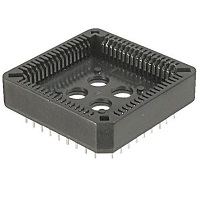
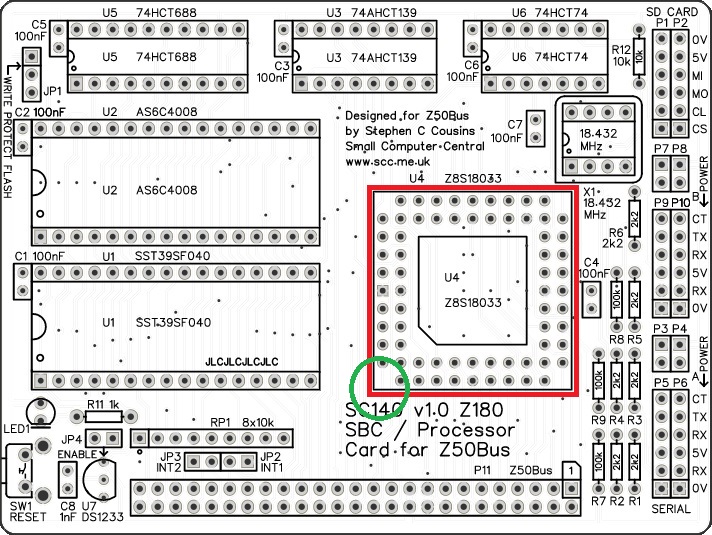
The spacing around the oscillator is very tight and the socket U4 will slightly overlap the edge of the oscillator.
It is vital this socket is fitted the correct way around. The socket has a small chamfer on one corner, as indicated below in green
Quick Test
It is now worth repeating the check made earlier for a short on the power supply tracks. Connect the meter probes to each terminal of one of the capacitors, such as C1. This should be an open circuit, not a short.
Capacitor 1 nF
Fit and solder capacitor, C8.

This capacitor can be fitted either way around, as it is not polarity dependent.
The exact value of this component is not critical. The datasheet for the DS1233 specifies a value from 0.5 to 10 nF, thus a very low cost component with a wide tolerance is acceptable.

Capacitors 100 nF
Fit and solder capacitors C1 to C7.
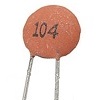
These capacitors can be fitted either way around, as they are not polarity dependent.
The exact value of this component is not critical. The use of very cheap capacitors within the range of about 30 to 200 nF is acceptable.

Header pins (straight)
These may need to be cut from longer strips using wire cutters to cut the plastic.
Fit and solder the pin header JP1 (1 row of 3 pins) (shown below in red).
Fit and solder the pin header JP2 plus PJ3 (1 row of 4 pins) (shown below in green).
Fit and solder the pin headers JP4, P3, and P7 (1 row of 2 pins), (shown below in blue).


Push button
Fit and solder the push button (reset switch), SW1.

Light Emitting Diode (LED)
Fit and solder green LED (LED1) in the position shown below.
The LED can either be fitted vertically, with straight leads, or horizontally, by bending the leads.
It is important to fit the LED the correct way around. LEDs usually have a small flat side to indicate the cathode (the negative end). This should be positioned to match the flat side shown on the circuit board (illustrated to the right). Also, the cathode pin on the LED is usually shorter than the other pin (the Anode).


Voltage supervisor and reset
Fit and solder the DS1233 voltage supervisor and reset device, U7.
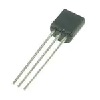
This device must be fitted the correct way around. Match the shape of the device to the legend on the circuit board.
It is necessary to spread the legs of the device to match the hole spacing on the circuit board. Do this gently so as too avoid straining the legs where they enter the plastic casing. DO not press the component hard into the board as this will also strain the legs.

Inspection
Remove any solder ‘splats’ with a brush, such as an old toothbrush.
Visually inspect the soldering for dry joints and shorts.
Clean the flux off with suitable cleaning materials.
Visually inspect again.
Quick Test (supply lines)
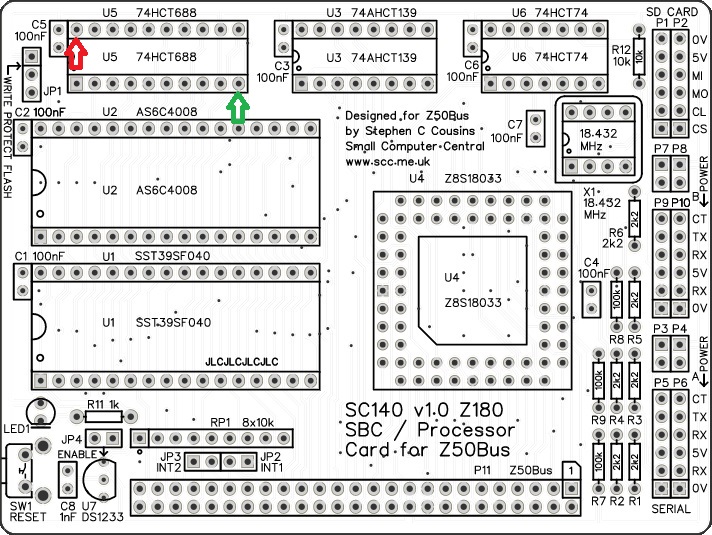
Repeat the check made earlier for a short on the power supply tracks. Connect the meter probes to IC U5 pin 20 (shown below in red) and U5 pin 10 (shown in green). This should be an open circuit, not a short. If you are using a digital meter set to measure resistance it will likely take a few seconds for the reading to stabilise as there are now capacitors on the power lines. A reading of more than 100 kΩ (100000 ohms) is acceptable.
Quick Test (reset line)
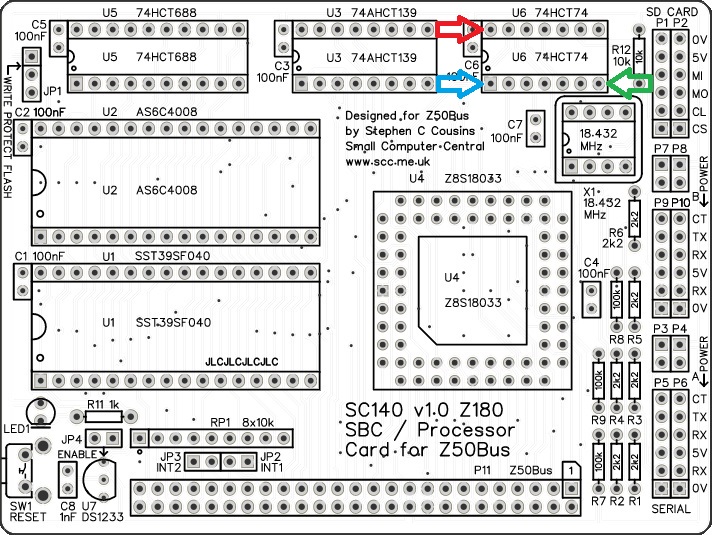
Now measure the resistance between IC U6 pin 1 (blue) and U6 pin 14 (red). This is measuring the pull up resistor, parts of RP1. It should read 5kΩ (5000 ohms) plus or minus 5%.
Also, measure the resistance between IC U6 pin 7 (green) and U6 pin 1 (blue). This is measuring the resistance of the reset switch (SW1). It should currently be open circuit. Again, the reading may take a few seconds to stabilise. A reading of more than 100 kΩ (100000 ohms) is acceptable. Whilst still measuring the resistance, press the reset button. The reading should now be a short circuit. A reading of less than 1 Ω is ideal, but less than 10 Ω is acceptable. The 10 ohm limit has been suggested mainly to allow for measurement accuracy with cheap meters.
Quick Tests (voltages)
Connect a 5 volt power source, typically using an FTDI style serial adapter to serial port A (P6) and fit a jumper shunt to P4.
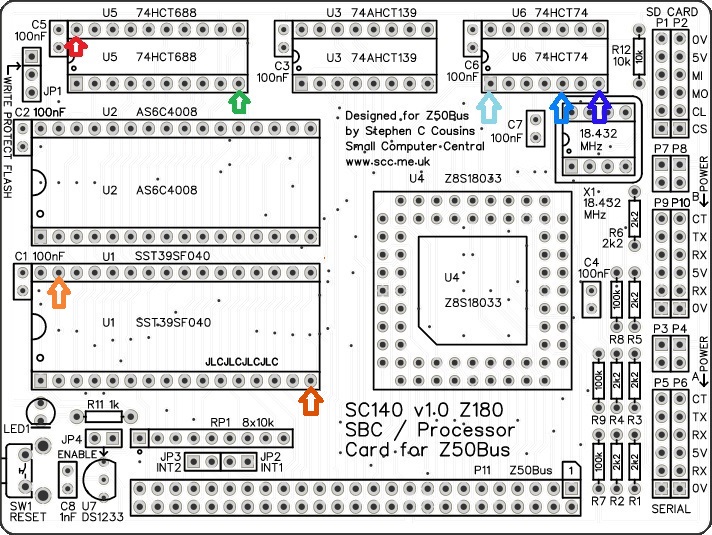
- The voltage measured from U5 pin 20 (red) and U5 pin 10 (green) should be between 4.75 and 5.25 volts.
- Test the status LED by touching one end of a piece of wire to U6 pin 5 (medium blue) and the other end to U6 pin 7 (dark blue).
- The voltage measured from U6 pin 7 (dark blue) to U6 pin 1 (light blue) should be between 4.00 and 5.25 volts.
- The voltage measured from U6 pin 7 (dark blue) to U6 pin 1 (light blue) should be between 0.00 and 0.20 volts when the reset button is pressed.
- With a jumper shunt fitted to JP1 in the “write protect flash” position, check the voltage form U1 pin 31 (light orange) to U1 pin 16 (dark orange) is between 4.50 and 5.25 volts.
Integrated Circuits
If all the above tests check out okay, disconnect the power and insert the integrated circuits into their sockets.
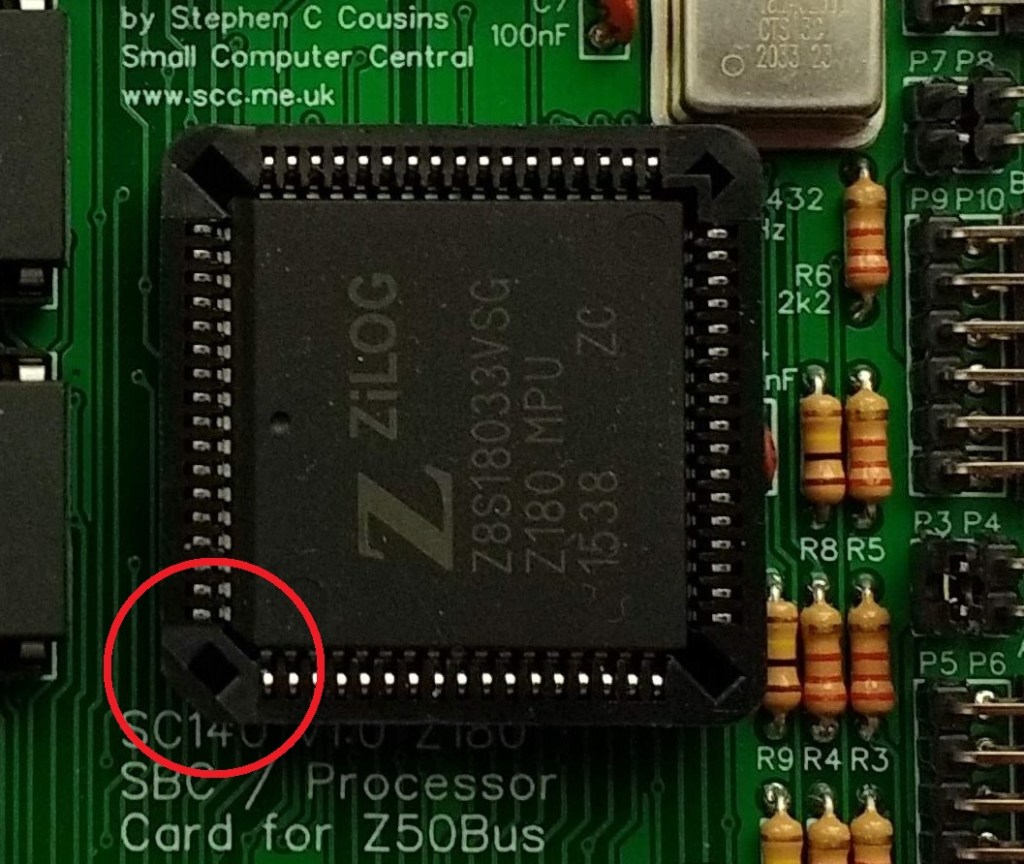
Fit the Z180 CPU into its socket as illustrated to the right. This must be fitted the correct way around. The socket and IC both have a small chamfer in the position indicated.
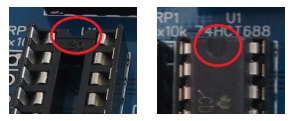
Insert the other integrated circuits into their sockets, taking care to insert them the right way round, as illustrated below. Be careful not to bend any legs over.
Quick Test (reset)
Fit jumper shunts in the positions shown below.

Connect a 5 volt power source, typically using an FTDI style serial adapter to serial port A (P6) and fit a jumper shunt to P4.
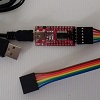
An FTDI style serial adapter and cable is typically used to connect to the computer, as illustrated to the right.
The status LED should light for a fraction of a second, then blink off for about half a second, then light again. This indicates the self test has passed.
If the status LED does not perform as indicated above, try removing jumper shunt JP4 and briefly press the reset button. If the status LED now indicates the self test passed then the voltage supervisor U7 was probably holding the processor in reset. The usual reason for this is the supply voltage is not adequate. The voltage reaching the component on the PCB needs to be at least 4.75 volts.
Brief Test (serial port)
If the self test completes correctly, power down and connect serial port A to a computer running terminal software.
The terminal software should be set for 115200 baud, 8 data bits, no parity, 1 stop bit, and no flow control. Power up and you should see the startup message.
Given that the self test passed, a failure to display the start up message is most likely to be directly related to the serial port electronics or the serial adapter cable. Check for activity at the serial port connector and around the 2k2 resistors.
If all is well set the terminal software to use hardware flow control and check you still see the start up message. It is recommended that hardware flow control be used where possible.
Circuit Explained
The SC140, Z180 SBC / Z50Bus Card includes the following:
- Z180 CPU running at 18.432 MHz
- One 512k byte static RAM chip
- One 512k byte Flash ROM chips
- Two 5 volt FTDI style asynchronous serial ports
- One 5 volt SPI / SD Card ports
- Clock oscillator (18.432 MHz
- Power supply supervisor and a reset circuit
C1 to C7
These capacitors provide power supply decoupling (or bypass). The fast switching in digital circuits creates spikes on the power supply lines which are suppressed with decoupling capacitors placed at key points on the circuit board.
The exact value of this component is not critical. The use of very cheap capacitors within the range of about 30 to 200 nF is acceptable.
C8
This capacitor is required by the Voltage Supervisor and Reset device (DS1233-5+, U7) when an external reset switch and pull-up resistor are connected to the reset line. See DS1233-5+ datasheet for more details.
The exact value of this component is not critical. The datasheet for the DS1233 specifies a value from 0.5 to 10 nF, thus a very low cost component with a wide tolerance is acceptable.
JP1
Jumper 1 allows Flash chip U1’s write enable input to be connected to either Vcc (5 volts) or the CPU’s write output (/WR).
When the Flash chip’s write enable input is connected to Vcc, the Flash chip will never get a write enable signal and thus the memory is protected against being changed. When connected to the CPU’s write output, it is possible to write to the Flash chip.
Writing to the Flash chip is unlikely to happen by accident due to the software requirements. However, for peace of mind it is generally best to disable writing with this jumper.
JP2
Fit a jumper shunt here to connect the Z180’s interrupt #1 (/INT1) signal to the Z50Bus USER 1 pin. Removing this jumper shunt isolates the USER 1 pin, freeing it for other modules to use for a different function.
JP3
Fit a jumper shunt here to connect the Z180’s interrupt #2 (/INT2) signal to the Z50Bus USER 2 pin. Removing this jumper shunt isolates the USER 2 pin, freeing it for other modules to use for a different function.
JP4
This jumper is fitted to enable the voltage supervisor and reset chip, U7. You should only have one supervisor enabled in your system so remove this jumper if the onboard supervisor is not required. You may also wish to disable the supervisor to help diagnose any problems relating to your system not resetting. The supervisor can hold the system in reset if the supply voltage is below about 4.7 volts or if it thinks the reset signal is being pulled low for any other reason, so eliminate the supervisor as a cause by removing the jumper shunt.
LED1
This LED is used to indicate the presence of the 5 volt supply and also other status information. At reset the LED is turned on by a hardware reset (typically from the voltage supervisor, U7) but after that it is software controlled.
P1 and P2
These connectors give access to the 5 volt SPI port. This port uses the Z180’s hardware clocked serial I/O for high speed interfacing.
| Pin | Function |
| 1 | Chip select (active low) |
| 2 | Clock |
| 3 | Master out, slave in |
| 4 | Master in, slave out |
| 5 | Vcc (5V) |
| 6 | Ground (GND) |
Two sets of mounting holes are provided. This allows both a male and a female header to be fitted. The female header enables the Micro SD adapter to be directly connected to SC140, while the male header enables the Micro SD card adapter to be placed away from the SC140 using a 6-way female to female Dupont cable.
P3 and P4, and P7 and P8
These enable SC140’s Vcc (5 V) to be connected to serial ports A and B power pins. Typically, this allows the system to be powered from an FTDI style serial adapter.
WARNING: You should normally only connect one power source to the system, at any time.
As power can flow either way, these jumpers (or switches) also enable serial devices to be powered from SC140. If such devices are used, fit a jumper shunt in the appropriate position.
Two sets of mounting holes are provided for each serial port.
P5 and P6, and P9 and P10
Serial ports A and B are connected via P5 or P6, and P9 or P10 respectively. These are FTDI style 5 volt serial ports. Port A includes RTS/CTS flow control signals, while port B does not.
| Pin | Function |
| 1 | Ground (GND) |
| 2 | Request To Send (RTS) output from Z180 |
| 3 | Vcc (5V) |
| 4 | Recieve Data (RxD) input to Z180 |
| 5 | Transmit Data (TxD) output from Z180 |
| 6 | Clear To Send (CTS) input to Z180 |
Two sets of mounting holes are provided for each port. This allows both a male and a female header to be fitted.
P11
This is a 2 row by 25 pin male header for connection to a Z50Bus backplane. When fitted to a backplane, other Z50Bus cards can be used with SC140.
R1 to R6
These provide current limiting between the Z180 system and the serial devices on serial ports A and B, providing protection for when one is powered and the other is not.
R7 to R9
The resistors provide pull up and pull down for the serial port inputs, thus holding them in known states when no device is connected.
R10
There is no R10!
R11
This is a current limiting resistor for the LED. 1000 ohms should give reasonable brightness, but higher or lower values can be used if required.
R12
This resistor pulls up the SPI port’s MISO line. Some SPI slave devices drive the MISO line both high and low, while others only drive it low (open collector). This resistor is required to pull the MISO line high when a device is not driving it low.
RP1
The resistor network (or resistor pack) provides 8 resistors to pull up processor signals that may either not always be connected to external devices, or are connected to devices that have open collector outputs. Open collector outputs only drive the signal low when active, but do not drive the signal high when inactive. These signals are left ‘floating’ when not active and thus need pull-up resistors to pull the signal to its inactive state (high).
SW1
This tactile button grounds the reset signal, resetting the system.
U1
This is a 512k byte Flash memory chip. This holds the board’s firmware, typically RomWBW.
U2
This is a 512k byte static RAM chip. This is used to store the program and data being worked on at the current time.
U3
The 74AHCT139 is the addresses decoder, providing chip enable signals for the two memory chips and for the I/O devices. It is a dual 2-to-4 line decoder. One decoder is used to select between the RAM and the Flash memory. The other forms part of the address decoding for input/output devices.
Memory: Inputs are memory request (MREQ) and A19. Memory request is low when memory is being accessed and A19 determines if it is Flash memory (A19 low) or RAM (A19 high).
Input/output: This provides two output device enable signals (active low). One of the outputs is low when a write is being performed to the input/output address 0x0C, the other when a write is being performed to the input/output address 0x0E. Address 0x0C is used to control the SPI / SD card’s enable signal latch (U6.2). Address 0x0E is used to control the status LED latch (U6.1).
U4
This is a 68-pin PLCC packaged Z8S180 CPU. It must be rated at a frequency at least as high as the clock signal PHI.
PHI is initially the on-board oscillator (X1) frequency divided by 2, as the Z180 turns on its clock divider on at reset. However, current firmware turns this off, so PHI is then equal to the on-board oscillator (X1) frequency.
U5
These are 74HCT688 8-bit identity comparator. The output of this devices goes low when a write is being performed to an input/output device address 0000 11X0 binary. This signal is used to enable the input/output half of U3.
U6
This is a dual D-type flip flop which is used to provide to software controlled output bits. One is the SPI / SD card enable signal, the other controls the status LED.
The flip-flop latches the state of the ‘D’ input when the clock input rises. The latched state is output on the ‘Q’ pin. The ‘D’ input is a data bus signal, while the clock input is the address decoded chip select line. The result being that a data write to the appropriate output port address causes the data bit to be stored in the flip-flop latch and output to the SPI / SD card enable or the LED. This the SPI / SD card enable and the LED state can be controlled by simple I/O writes in software.
The flip-flop latches are set low by a hardware reset, resulting in the SPI / SD card being enabled and the LED being turned on.
U7
This is a DS1233-5+ voltage supervisor and reset device. It provides a clean, reliable reset for the Z180 system. The device pulls the system’s reset signal low when the supply voltage is less than about 4.7 volts. If your system does not run, check the supply voltage and the reset signal.
The reset line can also be pulled down by the reset button. The DS1233 senses this and pulls its own output low to provide a clean reset pulse. This eliminates the typical switch bounce that could lead to reliability problems.
X1
This oscillator provides the CPU’s main clock. With existing firmware this oscillator is also used as a clock source for the serial ports. Typically this oscillator is 18.432 MHz. This is the frequency required when running the card with current firmware.
Getting started with RomWBW
The very latest version, source code and documentation for RomWBW can be found here.
The following describes the use of RomWBW v3.0
The standard distribution of RomWBW for SC140 assumes a terminal is connected to serial port A. The default serial port settings are: 115200 baud, 8 data, 1 stop, no parity, no flow control. An FTDI serial to USB adapter is shown above, connected to serial port A.
An SD card is optional. If present, it should be connected as illustrated above.
At power up RomWBW initialises and displays self test result on the status LED. It also shows more detailed diagnostic information on the LEDs of a digital I/O module, if present and set to address 0x0D. It also outputs system information to the terminal.
Status LED
Following a reset, the status LED should light for a fraction of a second, then blink off for about half a second, then light again. This indicates the self test has passed.
Once an option is selected from the RomWBW startup menu the status LED turns off, but lights during access to storage devices.
Diagnostic display
The optional diagnostic display should result in the LEDs each lighting in turn until all 8 are turned on. The LED display, shown in binary, goes through the following sequence:
- 0000 0000 = State after hardware reset
- Disable interrupts
- 0000 0001 = Start of initialisation
- Setup Z180 base address
- 0000 0010
- Setup Z180 registers
- 0000 0011
- Install HBIOS into RAM and transition to RAM
- 0000 0111
- Setup page zero interrupt vector
- 0000 1111
- Determine CPU type and speed
- 0001 1111
- Initialise heap storage
- 0011 1111
- Pre-console initialisation
- 0111 1111
- Output any cached debug text
- Announce HBIOS and version
- 1111 1111
- Display system information
For full details see RomWBW source code, file “hbios.asm”.
Once an option is selected from the RomWBW startup menu the diagnostic LEDs turn off, but light during access to storage devices. Each drive is represented by its own LED.
System information
When RomWBW starts it will display something like this on the terminal:
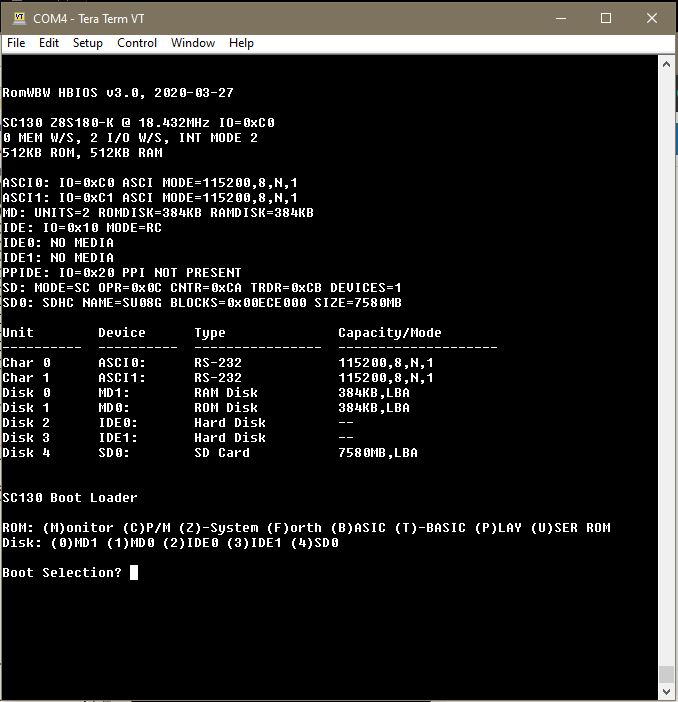
The first line shows the HBIOS version.
RomWBW HBIOS v3.0, 2020-03-27
Following this is the configuration name “SCZ180” and the CPU details. This should say “Z8S180-K” or “Z8S180-N”, followed by the speed (18.432MHz) and the Z180 register base address (0xC0).
SC130 Z8S180-K @ 18.432MHz IO=0xC0
The memory and I/O wait states are shown, each with a value of 0 to 3. Zero wait states is the fastest. Several wait states are added to I/O operations to increase the access time to something similar to a typical RC2014 bus. The interrupt mode is also shown, followed by memory size.
0 MEM W/S, 2 I/O W/S, INT MODE 2
512KB ROM, 512KB RAM
The next block is all the devices detected.
ASCI0: IO=0xC0 ASCI MODE=115200,8,N,1
ASCI1: IO=0xC1 ASCI MODE=115200,8,N,1
MD: UNITS=2 ROMDISK=384KB RAMDISK=384KB
IDE: IO=0x10 MODE=RC
IDE0: NO MEDIA
IDE1: NO MEDIA
PPIDE: IO=0x20 PPI NOT PRESENT
SD: MODE=SC OPR=0x0C CNTR=0xCA TRDR=0xCB DEVICES=1
SD0: SDHC NAME=SU08G BLOCKS=0x00ECE000 SIZE=7580MB
ASCI0/1 are the Z180’s serial ports.
DSRTC is the Real Time Clock. This is not included on the motherboard but could be added as an expansion module. Charge must be off.
MD is the memory devices. There should be 2 units: ROMDISK and RAMDISK.
IDE devices, such as the optional Compact Flash module, are shown.
PPIDE is the optional parallel port IDE drive.
SD is the SD card, if fitted to SC140’s SPI port.
This is followed by details of the character and disk devices and then the boot options.
Real Time Clock
A real time clock is not included on SC140. If it is included on a separate module (at I/O address 0x0C), RomWBW will detect it.
The real time clock is managed with “RTC.COM” from CP/M. Start CP/M and type the command “RTC”.
To display the current time, press the “T” key.
Current time: 19-08-03 12:07:15-03
To enter the time and date, press the “I” key and enter the appropriate values. Each value is 2 digits, such as “07”. A 24 hour clock is used so hours can be from 00 to 23. The day of the week is in the range 01 (Sunday) to 07 (Saturday).
 Init date/time.
 YEAR:19
 MONTH:08
 DATE:03
 HOURS:12
 MINUTES:05
 SECONDS:00
 DAY:07
 RTC>s
 Set RTC time.
Now press the “S” key to set the time to the values entered above.
WARNING: Charge must be off as the RTC is assumed not tohave a rechargeable battery.
Preparing an SD card
An SD card provides a number of logical drives. Before using a drive it must be prepared with “CLRDIR” from CP/M. With recent releases of RomWBW you may need to use FDISK80 first.
When CP/M starts it will list the available drives. In the example below the SD card has 4 drives (G: to J:).
Loading CP/M 80 v2.2…
CBIOS v3.0 [WBW]
Configuring Drives…
    A:=MD1:0
    B:=MD0:0
    C:=SD0:0
    D:=SD0:1
    E:=SD0:2
    F:=SD0:3
    G:=SD0:4
    H:=SD0:5
    I:=SD0:6
    J:=SD0:7
    1932 Disk Buffer Bytes Free
CP/M-80 v2.2, 54.0K TPA
B>
Start CP/M and enter the command “CLRDIR H:”. To confirm you really do want to do this, press the “Y” key. Note, it has to be an upper case “Y”. The terminal should show something like this:
CLRDIR V-0.4 (06-Aug-2012) by Max Scane
 Warning - this utility will overwite the directory sectors of Drive: H:
 Type Y to proceed any key other key to exit. Y
 Directory cleared.
A simple way to test a drive is working properly is to do a copy with verify. For example:
 B>pip h:=B:*.*[v]
 COPYING -
 ASM.COM
 CLRDIR.COM
 COPY.CFG
 COPY.COM
 DDT.COM
Troubleshooting
Unless otherwise specified the following tests are performed with a low cost digital multimeter.
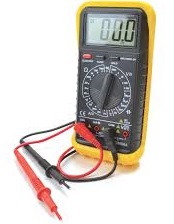
Results, below, are shown in a table which has a column for each of the following:
- Test – Description of the test
- My unit – Results on my SC140
- Min. – Minimum acceptable value
- Max. – Maximum acceptable value
Perform each check in the order described and, if possible, resolve any problem found before moving on to the next check.
Visual Inspection
From my experience I think the most likely problem will be an assembly issue. These can often be found with visual inspection, so take your time and carefully do the following:
- Check components are in the correct locations and are fitted the correct way around.
- Look for any IC leg that is bent under the chip and not making contact with the socket.
- With a magnifying glass (or similar) inspect all solder joints looking for any that may have a short to other components or where the solder has not flowed nicely onto the pad and component lead.
Never underestimate the importance of visual inspection.
Jumpers
The following tests assume a jumper shunt is fitted in the position shown below.

The write protection jumper (JP1) should have a shunt fitted in the ‘Write protect flash’ positions.
Power supply
With the board not connected to a power source and nothing else connected to the motherboard, use a multimeter to check there is not a short on the power lines. The meter reading may take a while to settle due to capacitance.
| Test | My unit | Min. | Max. |
| Power supply resistance measured at screw terminal (J2) | > 1 Mꭥ | 10 kꭥ | n/a |
A value below the minimum would likely indicate a short circuit, such as a solder splash. A less likely cause would be a faulty component, such as a decoupling capacitor.
The following tests are carried out with a 5 volt power source connected to either the screw terminals (J2), the barrel socket (J1), or one of the serial port headers (P2 or P6). When using the serial port power source, fit a jumper shunt to P4 (serial port A) or P8 (serial port B).
| Test | My unit | Min. | Max. |
| Power supply voltage measured at screw terminal (J2) | 4.93 V | 4.75 V | 5.25 V |
If you have a means of measuring the power supply current, do so now.
| Test | My unit | Min. | Max. |
| Power supply current running RomWBW | 40 mA | 30 mA | 60 mA |
A value below the minimum suggested value might indicate a broken track such that power is not reaching all of the components. A value around the minimum suggested value could be caused by the oscillator not running so that there is very little activity on the board, and thus low current consumption.
A value above the maximum might be caused by a faulty component, a short circuit somewhere, or perhaps an IC inserted the wrong way around.
Reset
The processor won’t run if the reset signal is low.
| Test | My unit | Min. | Max. |
| Voltage from U6 pin 7 (GND) to U6 pin 1 (/RESET) Reset button not pressed | 4.9 V | 4.0 V | 5.25 V |
| Voltage from U6 pin 7 (GND) to U6 pin 1 (/RESET) Reset button pressed | 0.0 V | 0.0 V | 0.5 V |
Check this voltage drops to less than 0.5 volts when the reset button is pressed. When the reset button is released, the reset signal should go high (> 4.0 V) within about 1 second.
If the reset signal stays low, there could be a problem around U7 (the voltage supervisor and reset chip), C10, or the reset button (SW1).
Power LED does not light up
Skip this section if the status LED (LED1) lights when power is applied, then blinks off for about half a second, then turns on and stays on.
If the LED lights but does not then blink off and on as described above, it is likely that there is a fault around IC U6 or the processor is not running the firmware correctly when it comes out of reset. If you can’t see a problem around U6 then skip the rest of this section.
Press and hold the reset button. If the LED lights but did not light at power up, then go back and check the reset signal again. If the LED does no light then continue with these tests.
| Test | My unit | Min. | Max. |
| Power supply voltage at IC U6, pins 7 and 14 | 4.93 V | 4.75 V | 5.25 V |
If the voltage is missing at IC U6 then check bad solder joints on the power tracks.
| Test | My unit | Min. | Max. |
| Voltage from screw terminal (J2) GND to resistor R13 (near power LED) Test end of resistor furthest away from LEDs | 0.17 V | 0.0 V | 0.5 V |
If this voltage is above the maximum, then U6 pin 5 is not pulling the signal low. At reset the two D-type flip-flops in U6 should be cleared. A cleared output on pin 5 should be low. As we have already checked the reset signal it is possible that IC U6 is faulty.
| Test | My unit | Min. | Max. |
| Voltage from screw terminal (J2) GND to resistor R13 (near power LED) Test end of resistor nearest the LEDs | 2.99 V | 2.5 V | 3.5 V |
If the voltage is not within the specified range, it is likely the LED is fitted the wrong way around or is faulty. Also, check solder joints and tracks around R13 and LED1.
Clock
The processor won’t run without a clock signal.
| Test | My unit | Min. | Max. |
| Voltage from any ground point to X1 pin 5 (CLKX) | 2.48 V | 2.0 V | 3.0 V |
If the voltage is not within the specified range, it is likely the oscillator is faulty, power is not reaching the oscillator, there is a bad joint around X1 or there is a short on the CLKX line.
Self-test LED sequence
Following a reset, the status LED should light for a fraction of a second, then blink off for about half a second, then light again. This indicates the self test has passed.
RomWBW uses an output port driving 8 LEDs to display the results of self-test diagnostics following a reset. A suitable port is SC129 set to address 0x0D.
RomWBW lights the LEDs in sequence, such that a successful test results in all 8 LEDs being turned on. This is described in detail here.
More power tests
Check the 5 volt supply reaches the following places by measuring the voltage at the points indicated.
| Test | My unit | Min. | Max. |
| IC U1 between pins 16 and 32 | 4.94 V | 4.75 V | 5.25 V |
| IC U2 between pins 16 and 32 | 4.94 V | 4.75 V | 5.25 V |
| IC U3 between pins 8 and 16 | 4.94 V | 4.75V | 5.25 V |
| IC U4 between pins 36 and 34 This can be tricky so skip this measurement if you are concerned | 4.94 V | 4.75 V | 5.25 V |
| IC U5 between pins 10 and 20 | 4.94 V | 4.75 V | 5.25 V |
| IC U6 between pins 7 and 14 | 4.94 V | 4.75 V | 5.25 V |
Bus signals
Check the voltage on the bus signals indicated in the tables below.
The voltages will depend on what the processor is doing, so on a faulty system they may not follow the pattern indicated by my test results. Also, a different version of the firmware will result in a different pattern of voltages.
If any of these signals are say less than 0.1 bolts or within 0.1 volts of the power supply voltage, it is likely there is a short between the signal and ground or the signal and 5 volts.
If any of these signals is outside the suggested range but not within 0.1 volts of ground or the power supply, then there could be a short between this signal and another signal, or it could just be the processor is running a tight loop and keeping the signal in one state nearly all the time.
If you have an oscilloscope, you will get a better idea of what is going on by looking at the signals at these locations, looking for floating signals or poorly shaped signals.
| Test | My unit | Min. | Max. |
| IC U2 between pins 16 and 13 (D0) | 2.7 V | 1.2 V | 3.5 V |
| IC U2 between pins 16 and 14 (D1) | 2.4 V | 1.2 V | 3.5 V |
| IC U2 between pins 16 and 15 (D2) | 2.6 V | 1.2 V | 3.5 V |
| IC U2 between pins 16 and 17 (D3) | 2.4 V | 1.2 V | 3.5 V |
| IC U2 between pins 16 and 18 (D4) | 1.9 V | 1.2 V | 3.5 V |
| IC U2 between pins 16 and 19 (D5) | 2.4 V | 1.2 V | 3.5 V |
| IC U2 between pins 16 and 20 (D6) | 2.3 V | 1.2 V | 3.5 V |
| IC U2 between pins 16 and 21 (D7) | 2.5 V | 1.2 V | 3.5 V |
| Test | My unit | Min. | Max. |
| IC U2 between pins 16 and 12 (A0) | 2.5 V | 1.2 V | 3.5 V |
| IC U2 between pins 16 and 11 (A1) | 2.4 V | 1.2 V | 3.5 V |
| IC U2 between pins 16 and 10 (A2) | 2.5 V | 1.2 V | 3.5 V |
| IC U2 between pins 16 and 9 (A3) | 2.8 V | 1.2 V | 3.5 V |
| IC U2 between pins 16 and 8 (A4) | 3.2 V | 1.2 V | 3.5 V |
| IC U2 between pins 16 and 7 (A5) | 3.2 V | 1.2 V | 3.5 V |
| IC U2 between pins 16 and 6 (A6) | 2.5 V | 1.2 V | 3.5 V |
| IC U2 between pins 16 and 5 (A7) | 2.0 V | 1.2 V | 3.5 V |
| Test | My unit | Min. | Max. |
| IC U2 between pins 16 and 27 (A8) | 2.1 V | 1.2 V | 3.5 V |
| IC U2 between pins 16 and 26 (A9) | 3.6 V | 1.2 V | 3.5 V |
| IC U2 between pins 16 and 23 (A10) | 3.3 V | 1.2 V | 3.5 V |
| IC U2 between pins 16 and 25 (A11) | 3.4 V | 1.2 V | 3.5 V |
| IC U2 between pins 16 and 4 (A12) | 1.5 V | 1.2 V | 3.5 V |
| IC U2 between pins 16 and 28 (A13) | 1.4 V | 1.2 V | 3.5 V |
| IC U2 between pins 16 and 3 (A14) | 1.5 V | 1.2 V | 3.5 V |
| IC U2 between pins 16 and 31 (A15) | 4.9 V | 1.2 V | 3.5 V |
| Test | My unit | Min. | Max. |
| IC U2 between pins 16 and 24 (RD) | 2.3 V | 1.2 V | 3.5 V |
| IC U2 between pins 16 and 29 (/WR) | 4.6 V | 4.0 V | 5.25 V |
| IC U2 between pins 16 and 22 (CE) | 1.9 V | 1.2 V | 3.5 V |
If any of these signals looks wrong, try measuring the voltage when you press and release the reset button.
If the voltage levels do not appear to change during that first second, it is likely the processor is not running the firmware code in the expected way.
Notes
- This design is made with the permission of LiNC (designers of the Z50Bus).
- This product is designed for hobby use and is not suitable for industrial, commercial or safety-critical applications.
- The product contains small parts and is not suitable for young children.
- RomWBW has been provided free of charge by its author Wayne Warthen.
 Small Computer Central
